Need to make the same update to several tasks? TeamGantt makes it easy to select multiple tasks and update them in a single action. You can assign people or labels, move or reschedule tasks, change task colors, or delete tasks in bulk.
How do I select multiple tasks?
There are a few ways to select multiple tasks in your project:
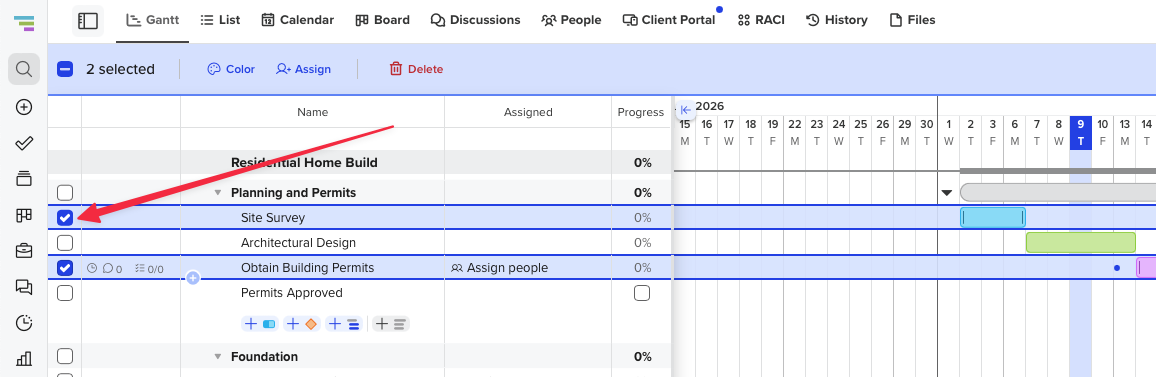
Option 1: Use task checkboxes
- Check the boxes next to the tasks you want to update.
- Use the light blue toolbar at the top of your project to choose your bulk action.
Option 2: Select individual taskbars with your keyboard
- Click the taskbar for the first task you want to select.
- Hold Command (Mac) or Ctrl (Windows), and click another taskbar.
- Repeat until you have selected all the tasks or milestones you want to update.
- Use the light blue toolbar at the top of your project to choose your bulk action.
Option 3: Select a range of taskbars with your keyboard
- Click the first taskbar in the range you want to select.
- Hold Shift, and click another taskbar.
- TeamGantt will select the two tasks you clicked and any tasks in between.
- Use the light blue toolbar at the top of your project to choose your bulk action.
Tip: When selecting tasks from the gantt chart, click the colored taskbar rather than the task name.
How do I assign multiple tasks at once?
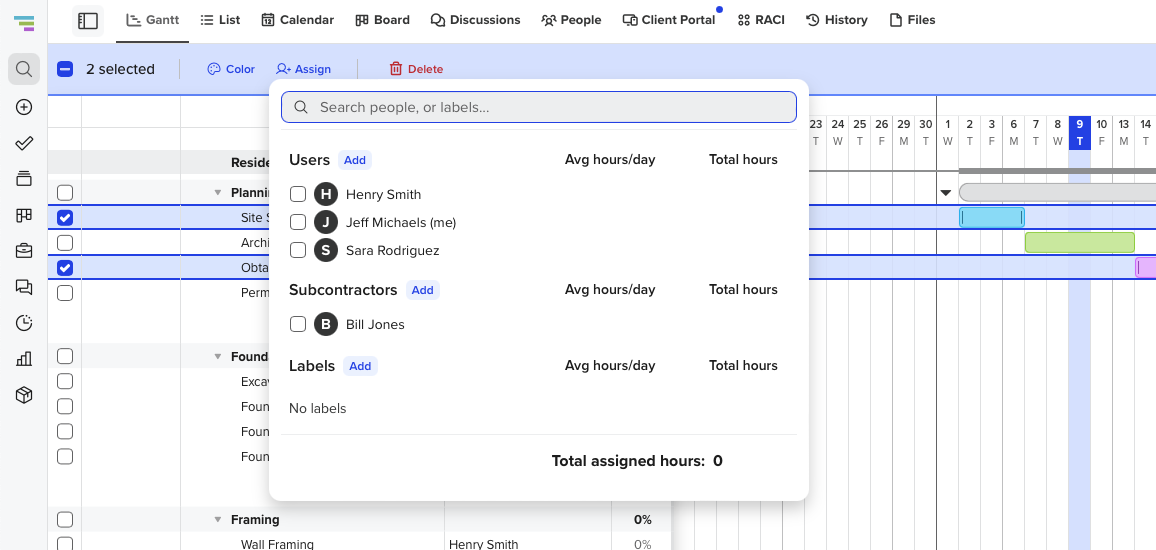
Use bulk assignment when several tasks need the same person or label assigned.
- Select the tasks you want to update.
- Click the person icon in the toolbar at the top of your project.
- Choose the person and/or label you want to assign to the selected tasks.
How do I change the color of multiple tasks at once?
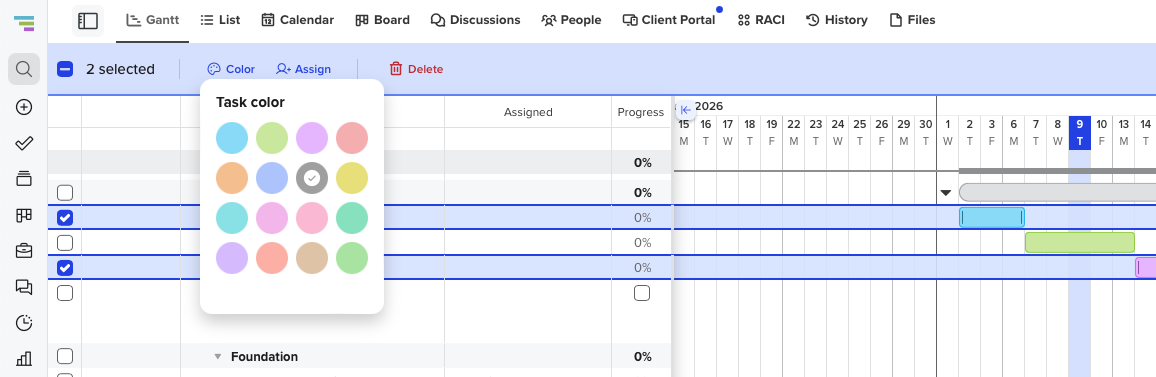
You can also update the color of several tasks at the same time. This is helpful when you want to color-code related work or quickly clean up the look of your project.
- Select the tasks you want to update.
- Click the color icon in the toolbar at the top of your project.
- Choose the color you want to apply.
- The selected tasks will update to the new color.
How do I delete multiple tasks at once?
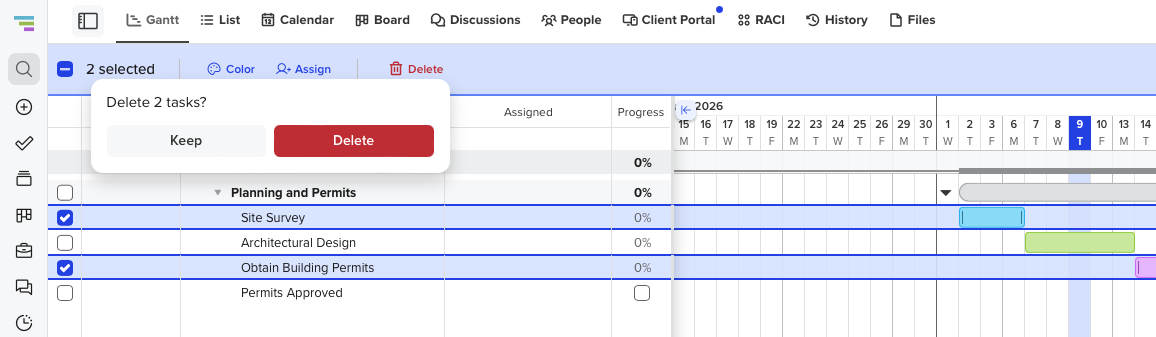
Need to remove several tasks from a project? You can select them and delete them together instead of deleting each task one by one.
- Select the tasks you want to delete.
- Click the delete or trash icon in the toolbar at the top of your project.
- Review the selected tasks, then confirm the deletion.
Note: Deleting tasks removes them from your project. Make sure you have selected the correct tasks before confirming.
FAQ
What bulk actions are available?
After selecting multiple tasks, you can use the bulk action toolbar to:
- Assign a person or label to selected tasks
- Move or reschedule selected tasks
- Change the color of selected tasks
- Delete selected tasks
Why don’t I see the bulk action toolbar?
The bulk action toolbar appears once you have selected one or more tasks. If you do not see it, make sure you have selected the task checkbox or clicked directly on the taskbar in the gantt chart.