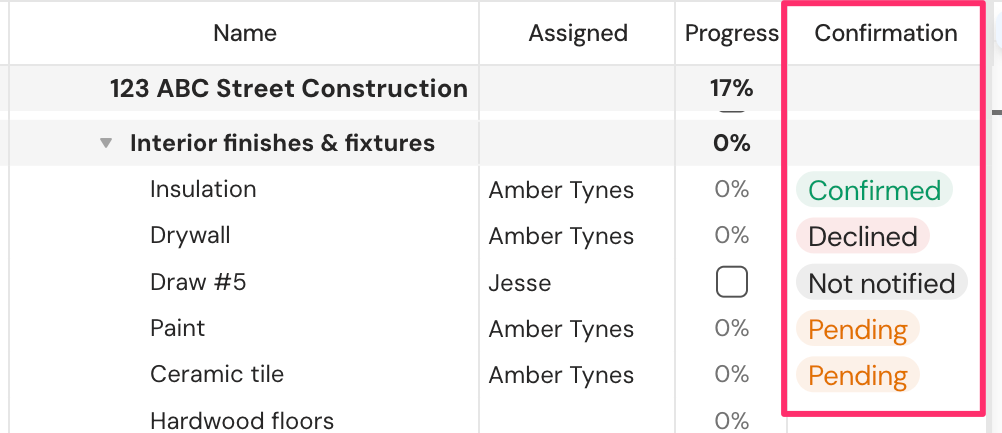
Schedule Confirmation helps Project Managers confirm both the initial project schedule and any schedule changes with the people assigned to the work. This ensures everyone is aligned on timelines, responsibilities, and expectations—before work begins or when plans change.
What is Schedule Confirmation?
Schedule Confirmation is designed to close the communication gap between project planning and execution. When a schedule is created or updated, Project Managers can request confirmation from team members or subcontractors assigned to tasks, giving them a chance to review and acknowledge their timelines.
This creates clarity, accountability, and fewer surprises down the road.
How to use Schedule Confirmation
Once tasks have been assigned or changes have been made to the schedule, a number will appear next to the "Confirm schedule" button at the top of the Gantt chart. This number indicates how many tasks have new or updated dates that need confirmation.
If you'd like to confirm tasks within a certain parameter (i.e. only tasks the next 3 weeks), you can apply a Lookahead window or another filter to your project first. Only unconfirmed tasks that fit the newly applied parameters will appear in your schedule confirmation modal.
You can click on "Confirm schedule" to view the tasks with new or rescheduled dates.
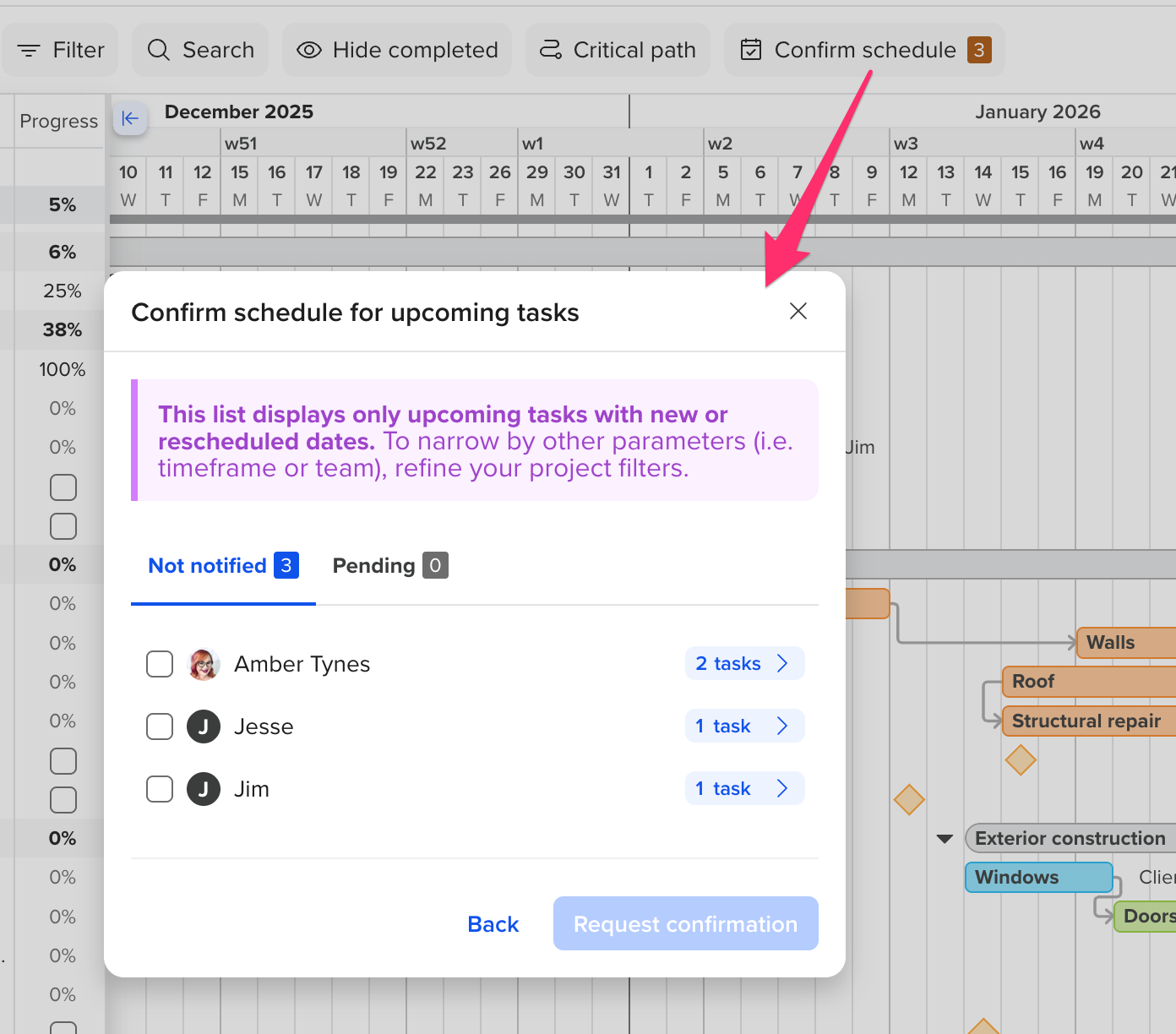
To request confirmation of the changes, select the user(s) you would like to notify and click "Request Confirmation".
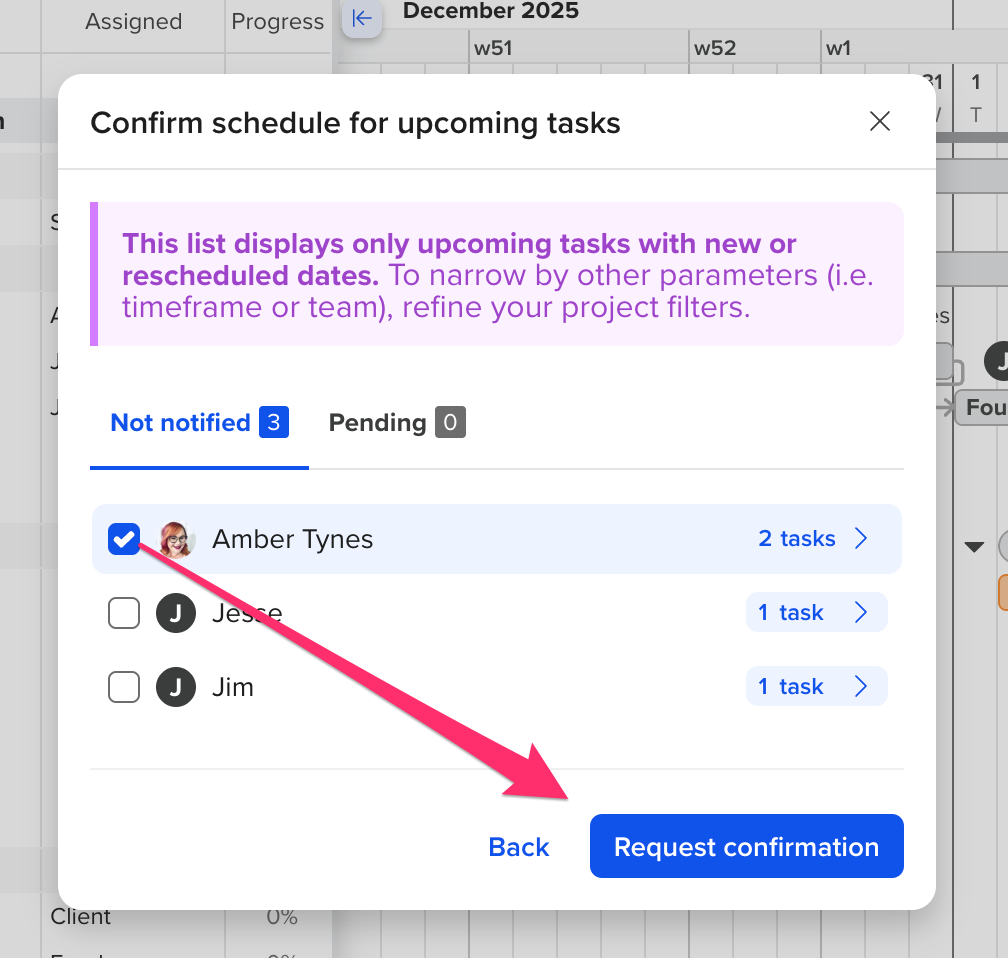
Once you click on "Request Confirmation", the selected user(s) will receive an email to confirm or deny the schedule. The user(s) will also move to the "Pending" section until the user(s) have viewed the schedule.
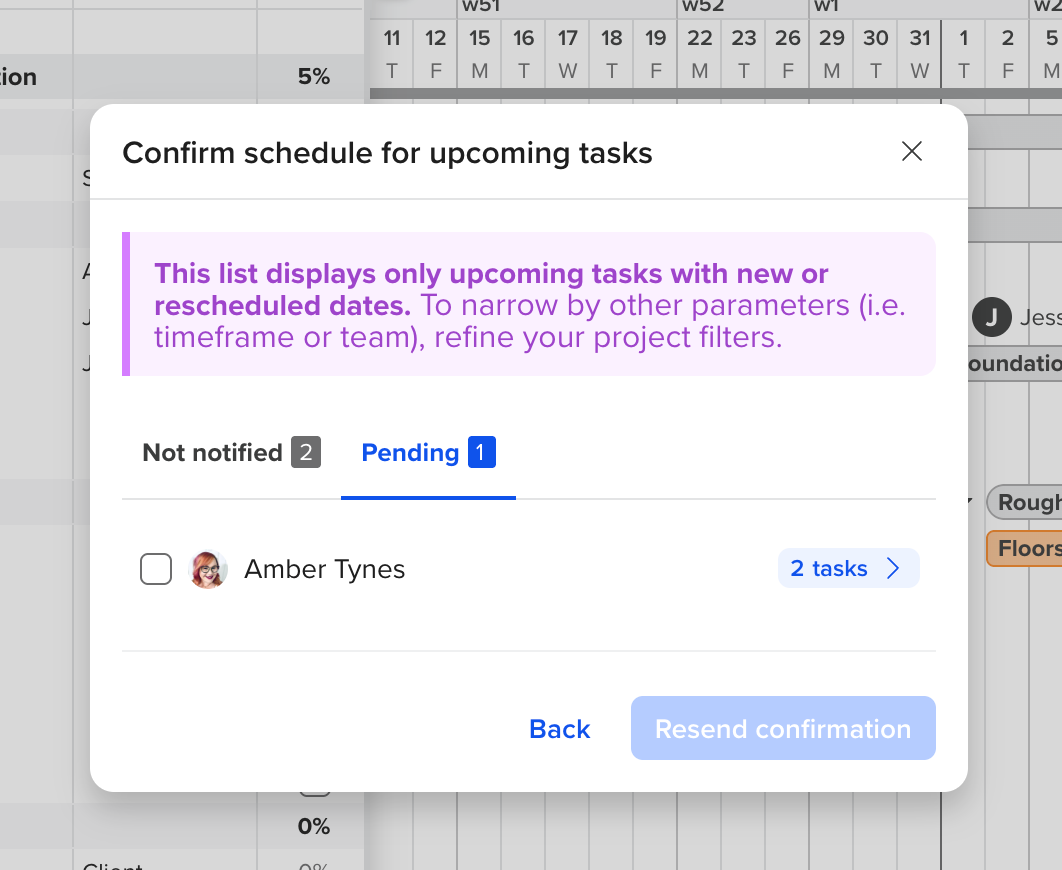
- You can monitor confirmation status directly within the Confirmation column in Gantt view.
- If needed, click Resend Confirmation to send another reminder to users who have not yet responded.
This makes it easy to ensure all assigned users have reviewed and acknowledged schedule changes—without chasing updates manually.
How does a user confirm their schedule?
Once schedule changes or task assignments are sent for confirmation, the selected user(s) will receive an email notification prompting them to review the updates.
If you're assigning Subcontractors, you can also send confirmation requests via SMS.
To confirm the schedule changes, the recipient must simply click on "Confirm schedule changes" in the email or text message.
 Once they click on the link, the user can confirm or decline the changes.
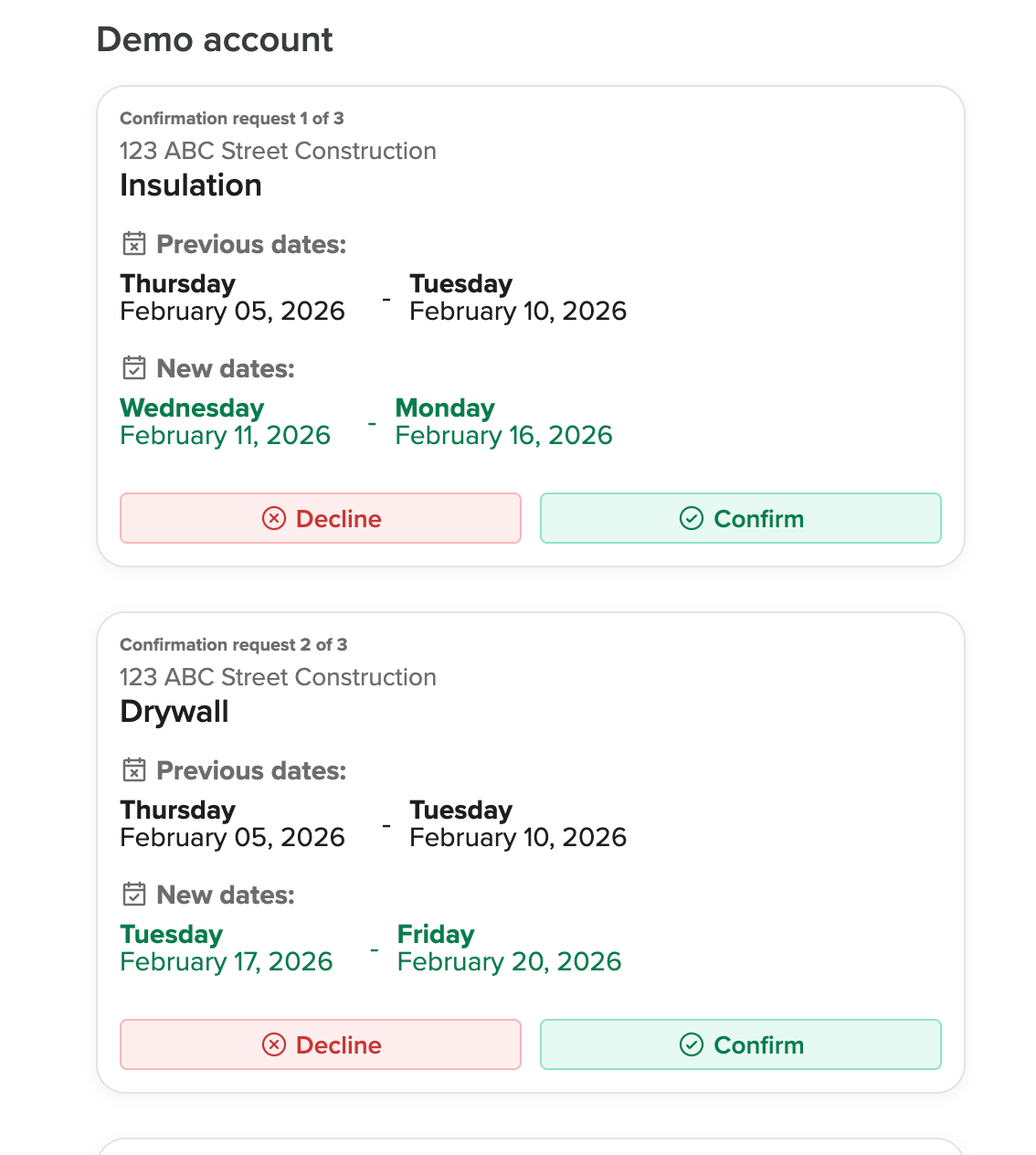
After all tasks have been confirmed or declined, click "Finish" to complete the process.

Project Managers can view each user’s responses at any time via the "Confirmation" column in the Gantt chart.
How to view responses to the schedule confirmation
There are 2 ways to receive updates on task confirmations:
- The Manager who requested the confirmation will receive confirmed and declined dates via email notification.
- Via the Confirmation column in your project. Once a person has confirmed or declined the schedule changes, you can view the response via the "Confirmation" column of the Gantt chart. You can enable the column by going to
View > Columns > Show Confirmation Column.
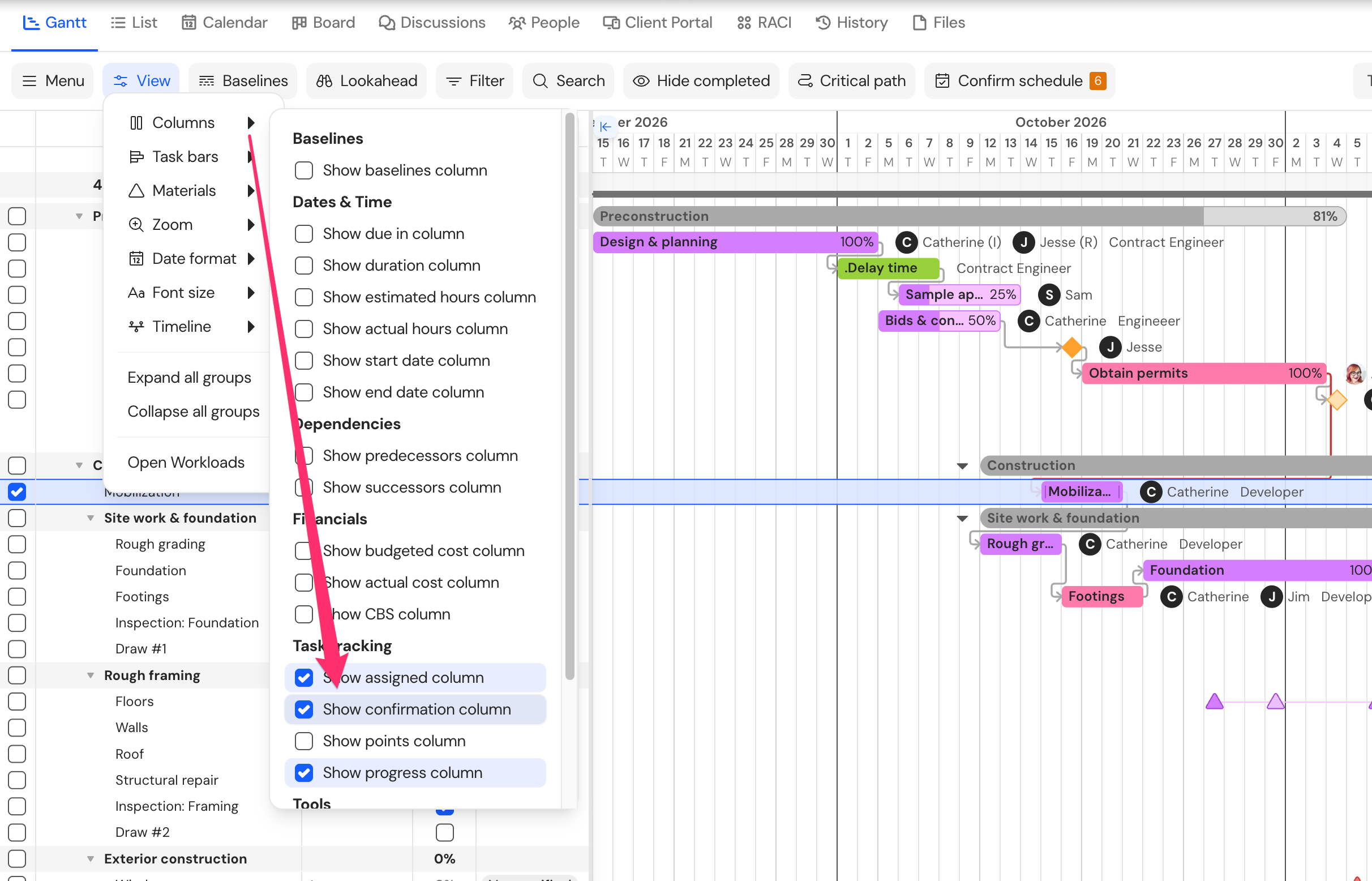
Once the column is enabled, you will be able to see if the changes have been
confirmed, declined, pending, or not notified.