Client Portal gives builders an easy way to share project updates with clients in a clear, professional, and centralized experience. Instead of relying on scattered calls, texts, and emails, you can choose exactly what to share and send clients a simple link where they can follow progress.
Who can use the Client Portal?
The Client Portal is available only on the Builder plan and Enterprise plans.
Permissions:
- Managers can configure and send Client Portal access.
- Collaborators cannot configure or send portals.
- Clients do not need a TeamGantt account to access the portal.
What is the Client Portal?
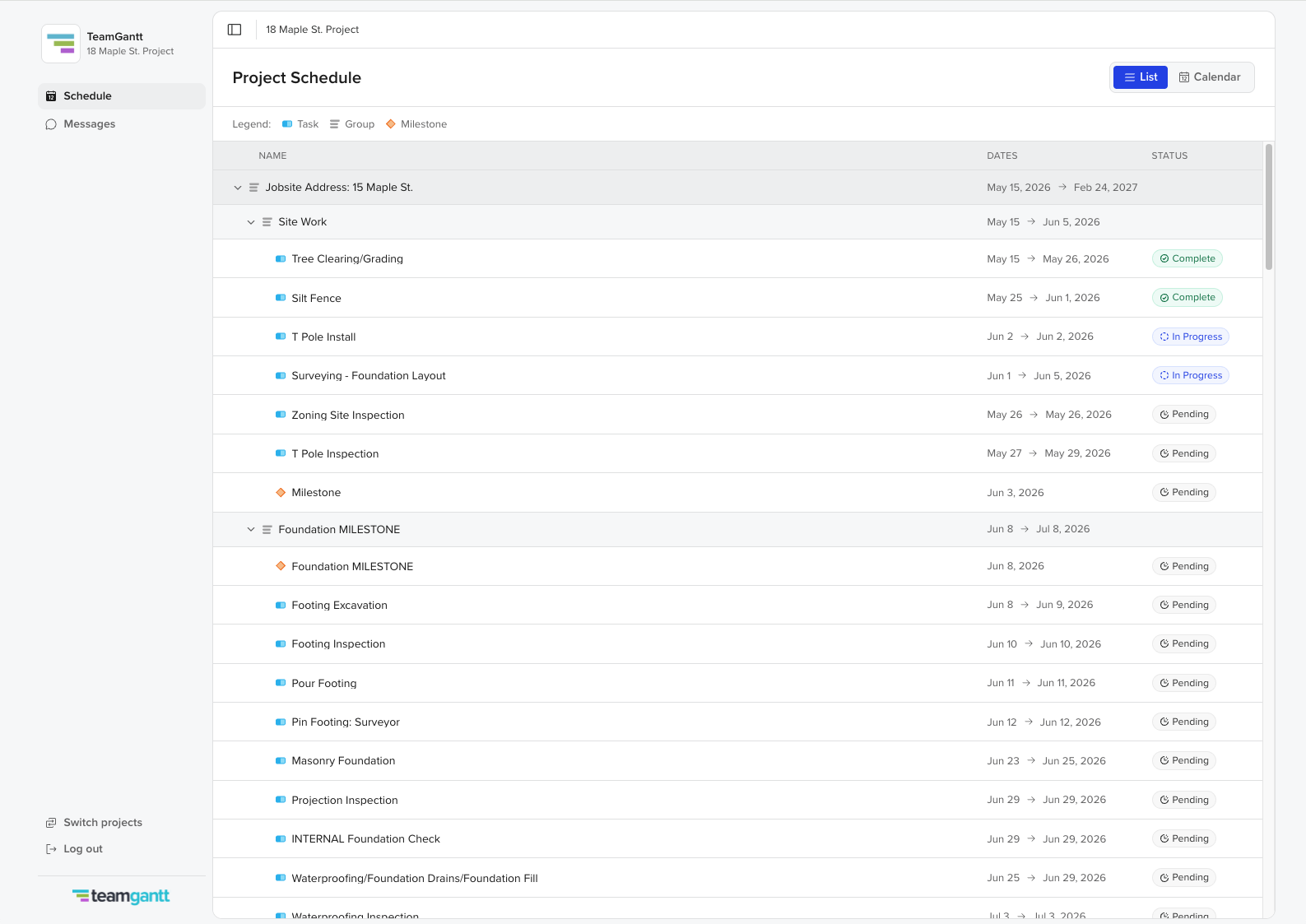
The Client Portal allows you to create a shareable view of your project that clients can access anytime.
With the Client Portal, you control what clients see while giving them visibility into project progress, upcoming milestones, and important updates—all in one place.
Clients can:
- View project schedules in List view or Calendar view
- See progress updates
- Access shared photos and comments
- Use a built-in messaging inbox to stay connected
- What can you share with clients?
Before sending access, you choose exactly what appears in the portal.
 You can share:
- Groups only
- Milestones only
- Groups and milestones
- The entire project
This flexibility helps you control the level of visibility that makes sense for each client. You can update a client's visibility any time from the Accesses section of your Client Portal tab.
Tip: If you would like to preview what the portal will look like for your clients, you can invite yourself to the portal.
How to set up and share the Client Portal
Follow these steps to configure and share a Client Portal:
Step 1: Open your project
Navigate to the project you want to share with your client.
Step 2: Open Client Portal
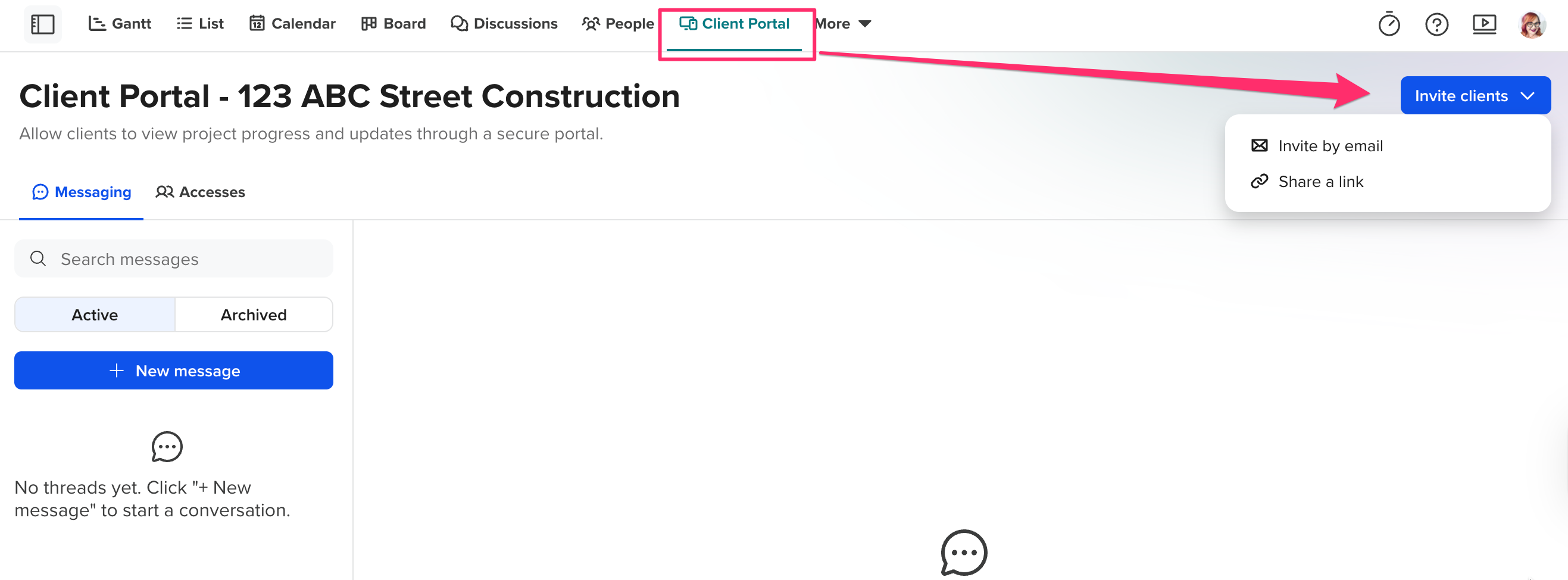
Select the Client Portal tab at the top of your project. Then, select Invite clients. You can then choose to Invite by email or Share a link.
Step 3: Choose what to share
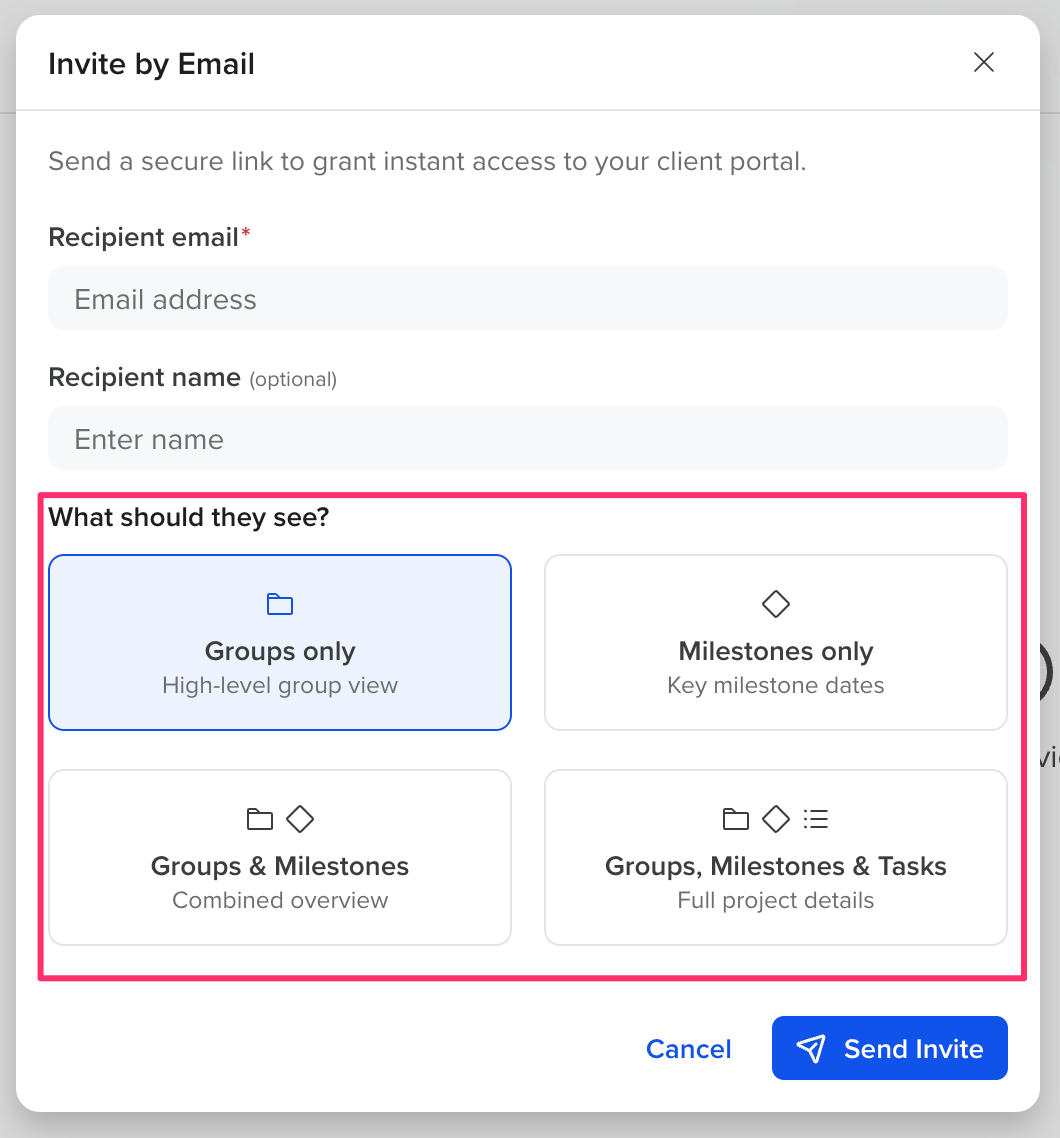
Select one of the following visibility options:
- Groups only
- Milestones only
- Groups and milestones
- Entire project
You can update a client's visibility any time from the Accesses section of your Client Portal tab.
Step 4: Send the email invite or share the link
Once your portal is configured, you can invite your client by:
- Sending the invitation directly via email from TeamGantt
- Copying the share link and sending it manually by email or text message. Your client will be prompted to enter their email to receive a link to accept the invitation.
Once your client accepts the invitation via either method, they'll be logged into their portal automatically.
How to remove access to the Client Portal
To remove access:
- Open the project
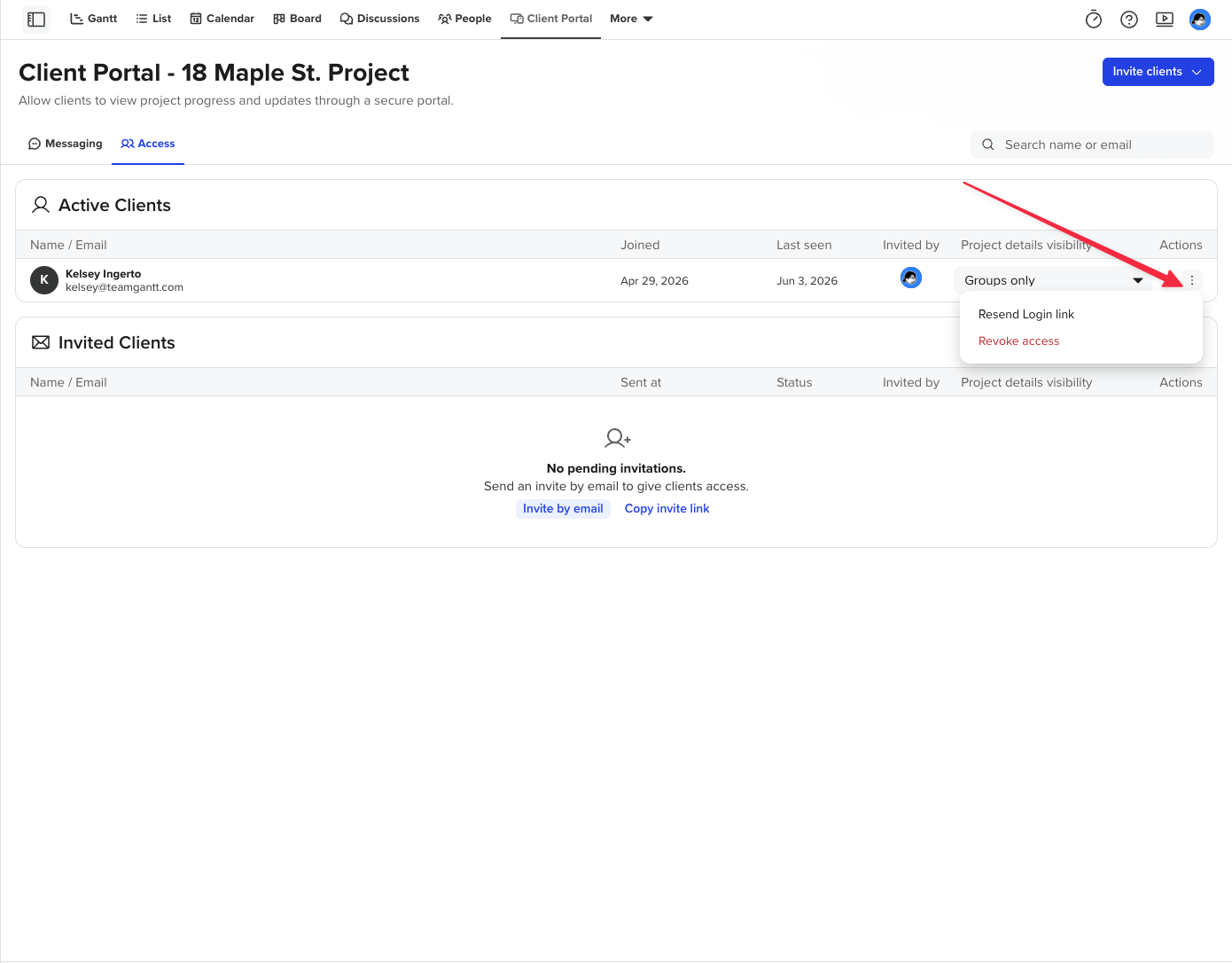
- Return to Client Portal > Accesses
- Select Revoke access (under the Actions menu)
How to message clients in the Client Portal
To message a client:
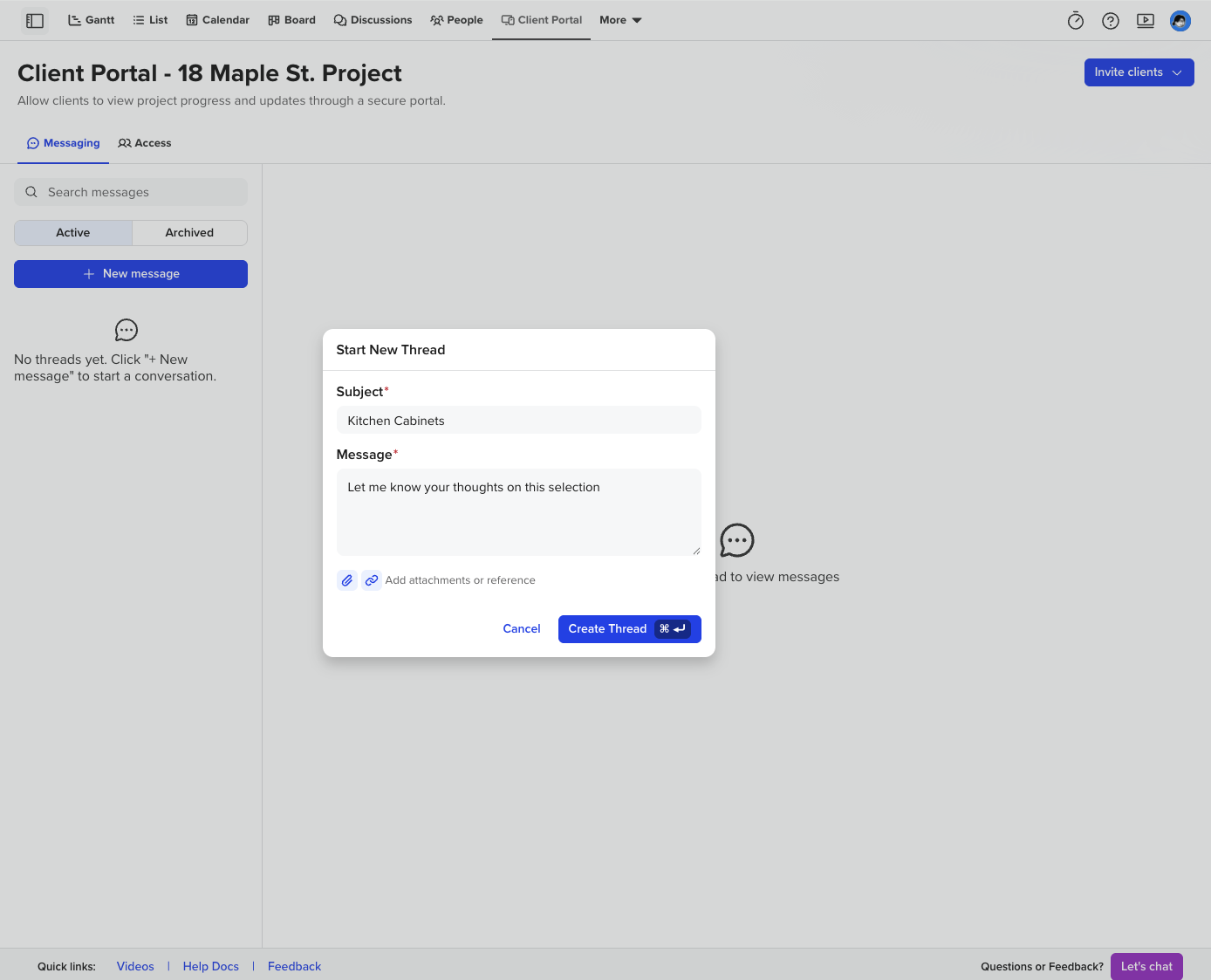
- Click on + New Message
- Enter a Subject and Message
- Optionally, attach files or reference a task or group in your project.
- Then, select Create Thread
If a group or task has been referenced in your message, you can click on the item to be taken to the task in question.
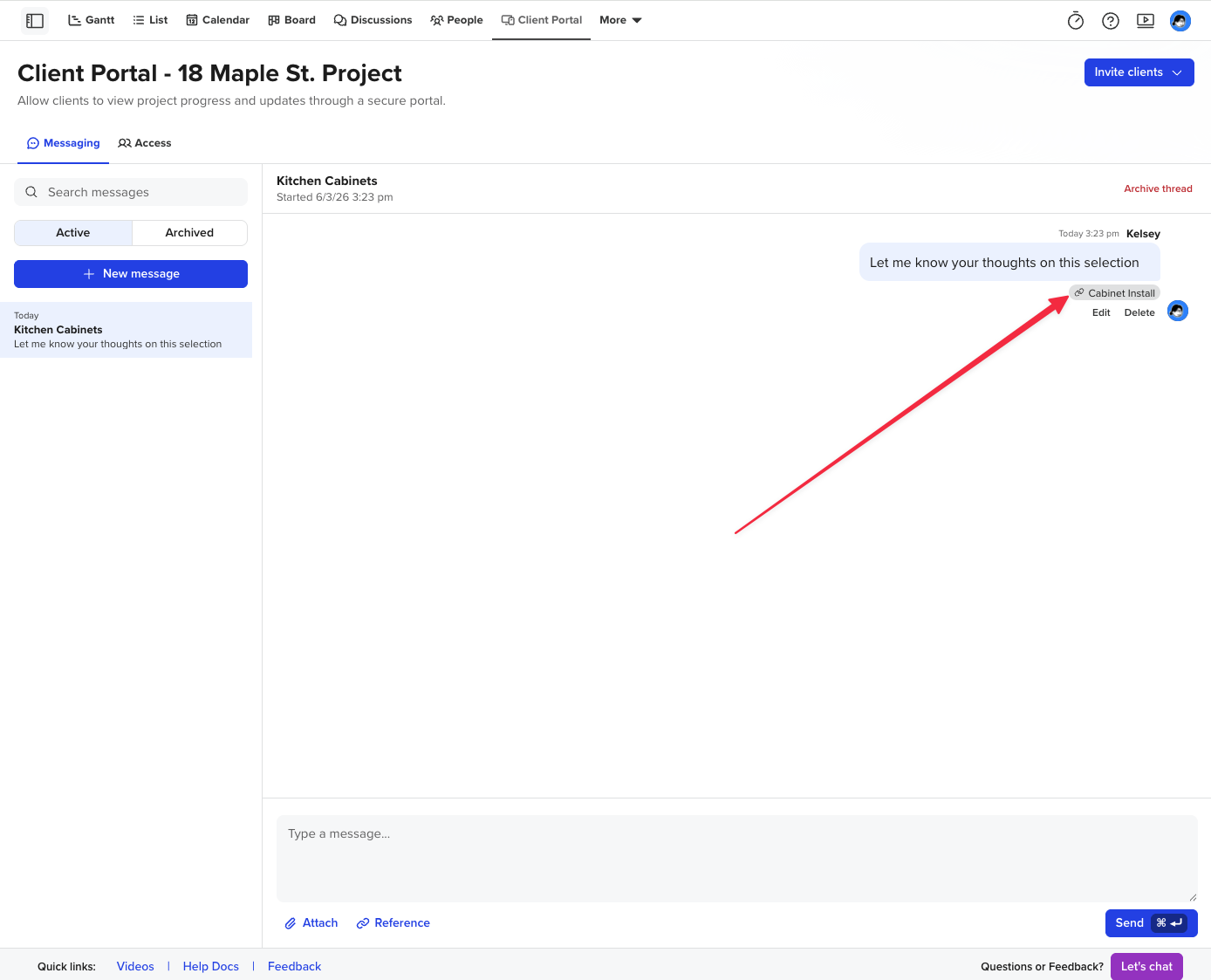
Tip: If you would like to archive a thread, you can do so at the upper right side of your open message. Clients will not be able to view threads that have been archived.
Tips for getting the most out of the Client Portal
To create the best experience for homeowners:
- Share milestones to highlight key project moments
- Include photos in updates whenever possible
- Use comments to provide quick progress notes
- Choose the visibility level that matches your communication style
A well-maintained Client Portal helps clients stay informed without needing frequent status requests.