Need to quickly organize your project tasks by date? TeamGantt makes it easy to reorder all tasks in a project based on their start dates.
This is especially helpful if your tasks were added out of order or if you want to quickly restructure your project into a more chronological, waterfall-style timeline.
How to reorder tasks by start date
Here’s how to reorder the tasks in your project:
- Open the project you’d like to update.
- Click the Menu drop-down in the upper right corner of your project.
- Select Reorder Tasks by Start Date.
TeamGantt will automatically reorder the tasks in your project based on each task’s start date.
What happens when tasks are reordered?
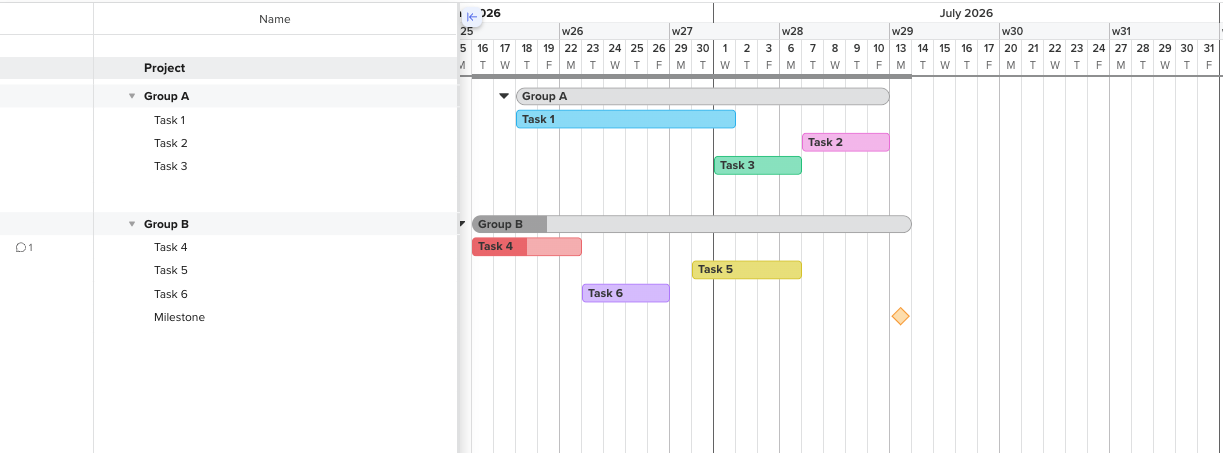
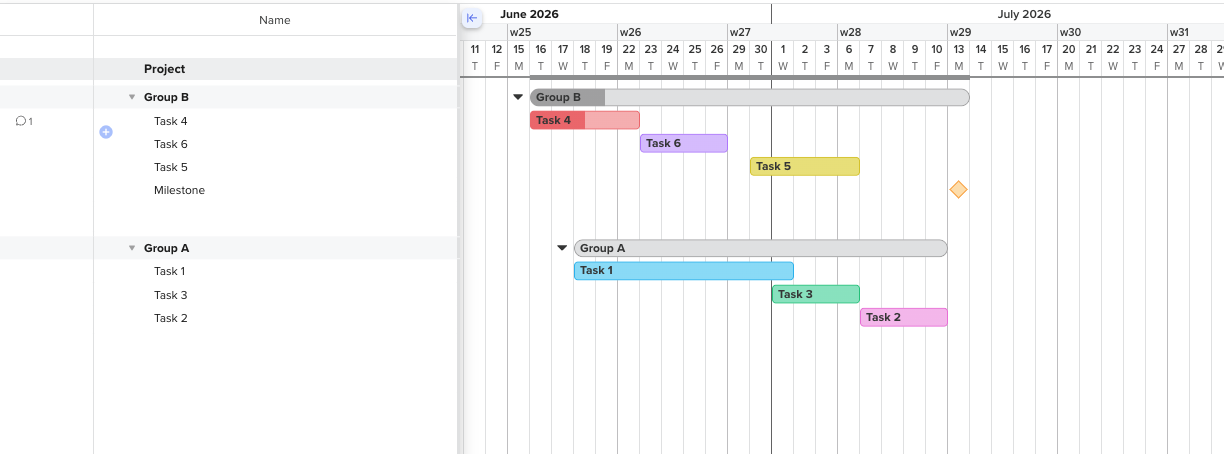
When you use Reorder Tasks by Start Date, TeamGantt will update the order of your project so tasks appear chronologically by start date.
This change applies to:
- Tasks within each group
- Groups within the project
That means your project will be reorganized so tasks and groups follow the order of your schedule more closely.
Before reordering:
After reordering:
Important note
This action cannot be undone. Be sure you’re ready to permanently reorder your project before selecting this option.
If you’d like to preserve the current task order, we recommend duplicating the project first. That way, you’ll have a backup copy to reference if needed.
When should I use this feature?
Reordering tasks by start date can be useful when you want to:
- Clean up a project where tasks were entered out of order
- Organize your project into a more logical timeline
- Quickly convert a project into a waterfall-style schedule
- Make your task list easier to scan and follow
Once reordered, your project will be easier to review from top to bottom based on when work is scheduled to begin.