Your contact may invite you to view project updates through TeamGantt's Client Portal. This portal gives you a simple way to stay informed about your project schedule, upcoming milestones, and progress updates—all in one place.
You can access the portal from any device using the link your contact sends you.
Do I need a TeamGantt account?
No. You do not need a TeamGantt account to use the Client Portal.
Just open the link or accept the invite provided by your contact to view your project updates! You will need to authenticate your email upon invite. Once authenticated, you will stay logged in, unless you choose to log out.
How to access your Client Portal
Follow these steps to open your portal:
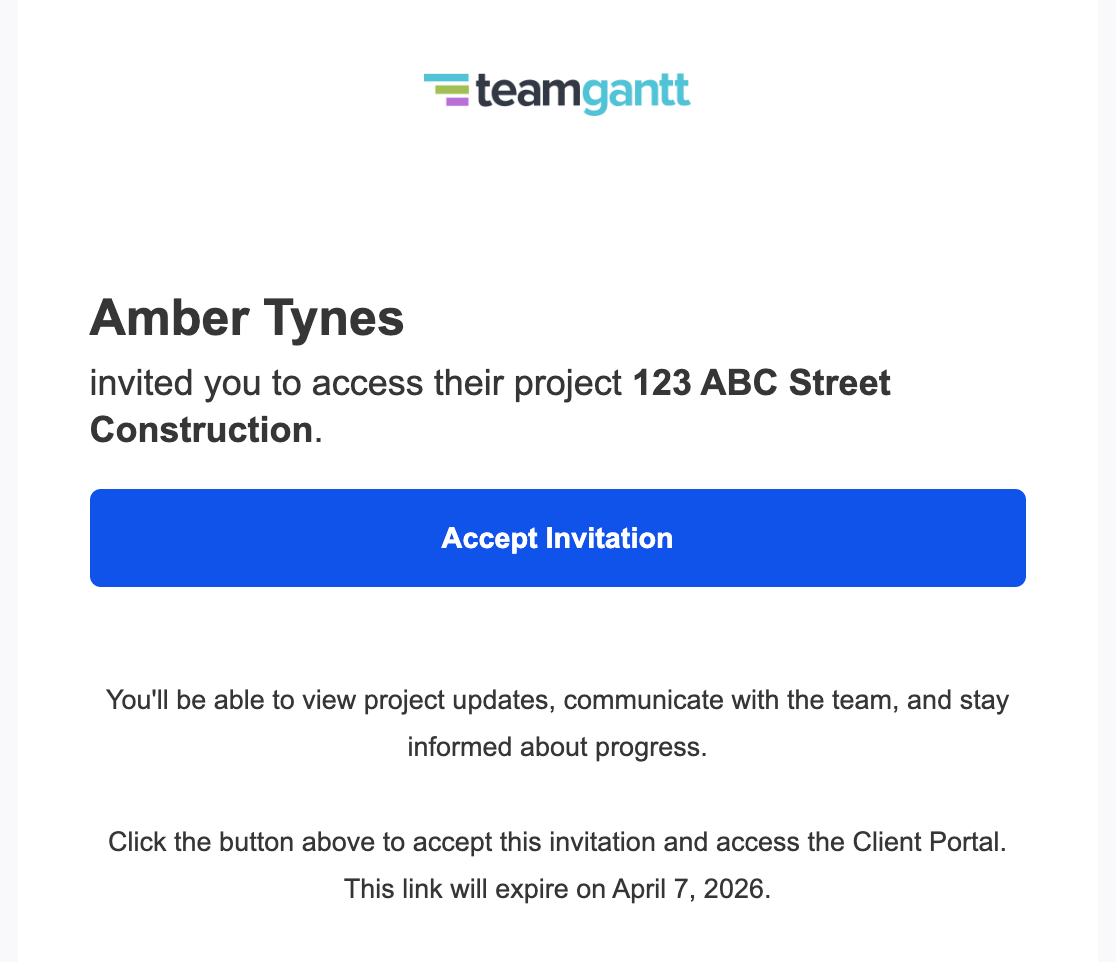
Step 1: Open your invitation link
Click the Client Portal link your contact shared with you by email.
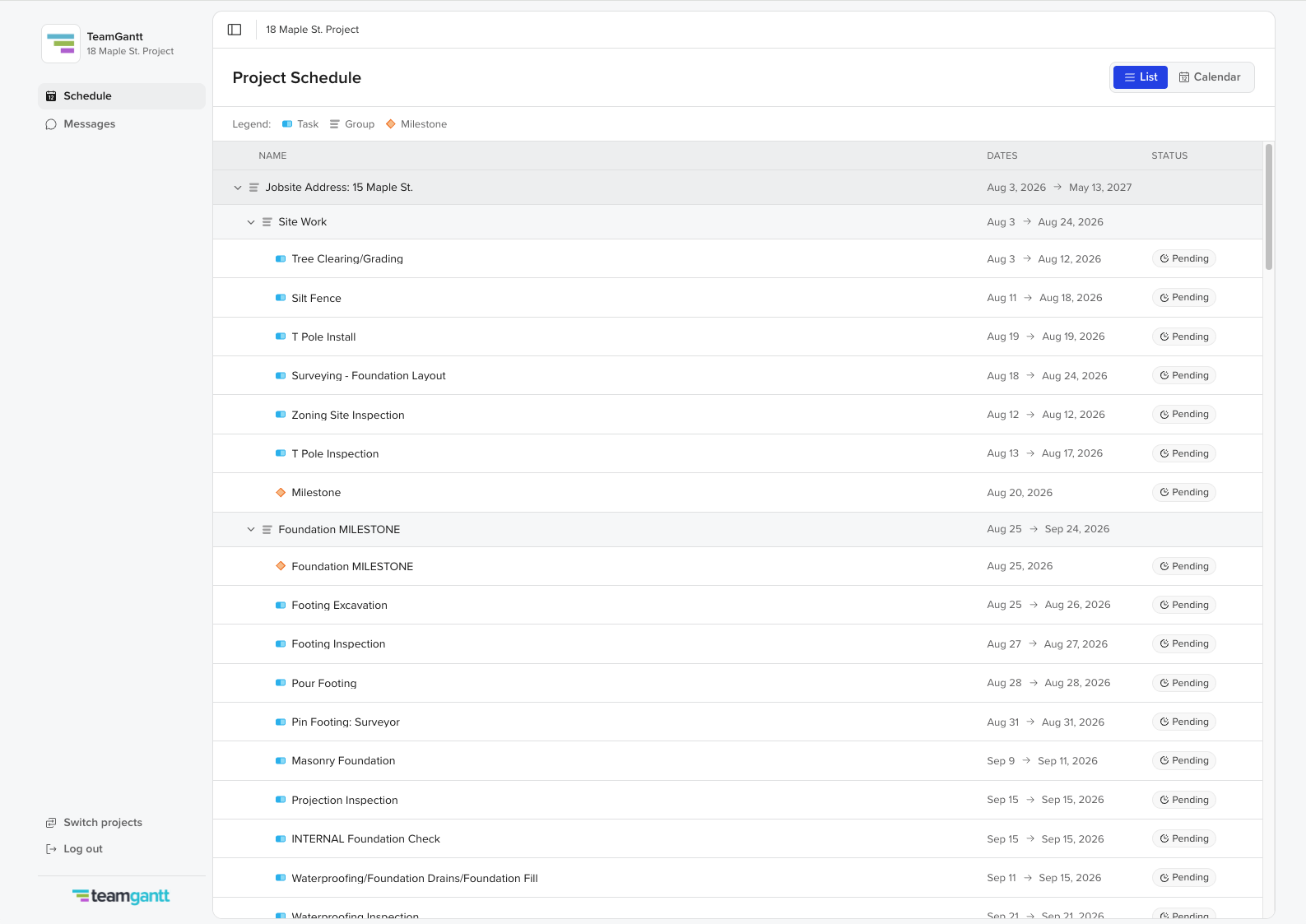
Step 2: View your project schedule
Once the portal opens, you’ll see a view of your project timeline and updates.
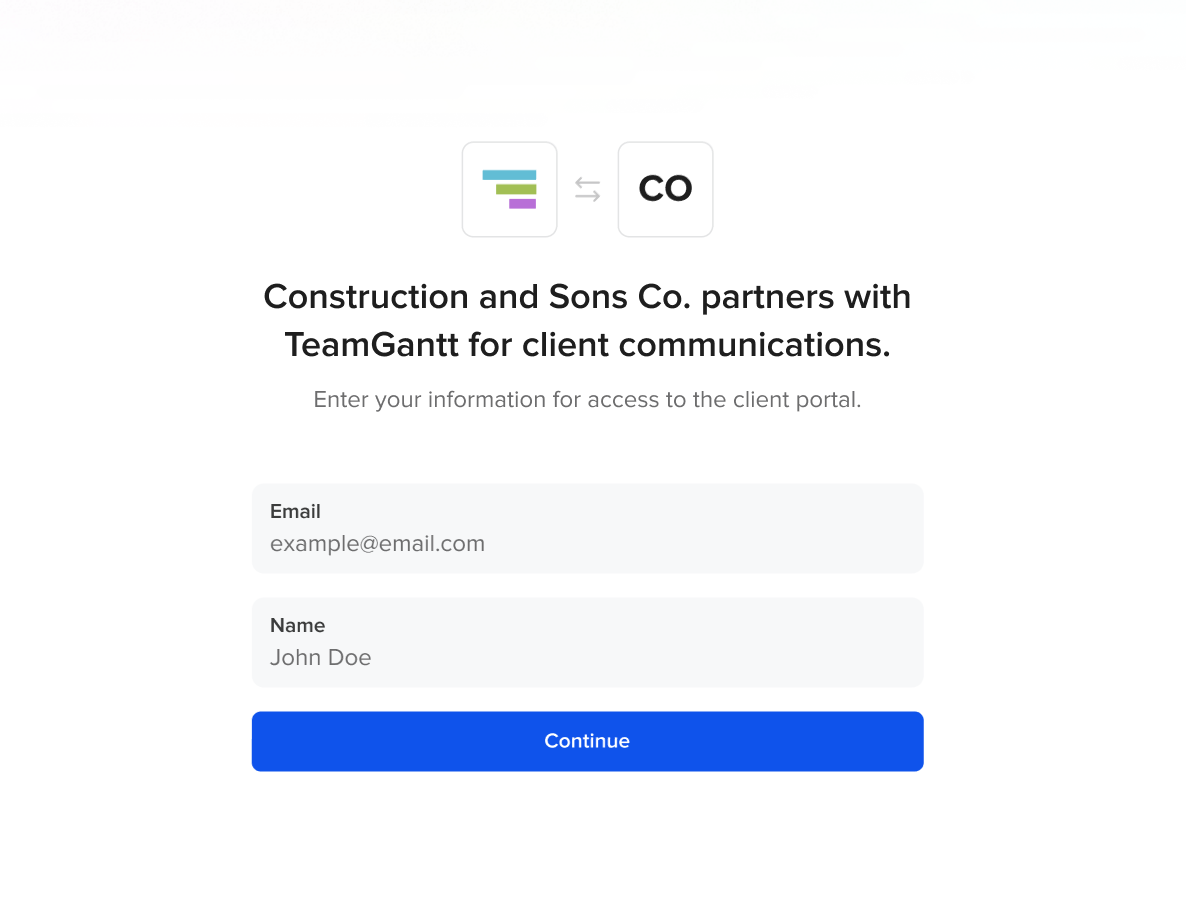
- If only a link was shared with you, you will first need to enter your email address and name to access the project timeline.
What can you see in the Client Portal?
Your builder can choose to share any of the following:
- Upcoming project steps
- Important milestones
- Progress updates
- Shared photos
- Updates on the project
How to switch between list and calendar views
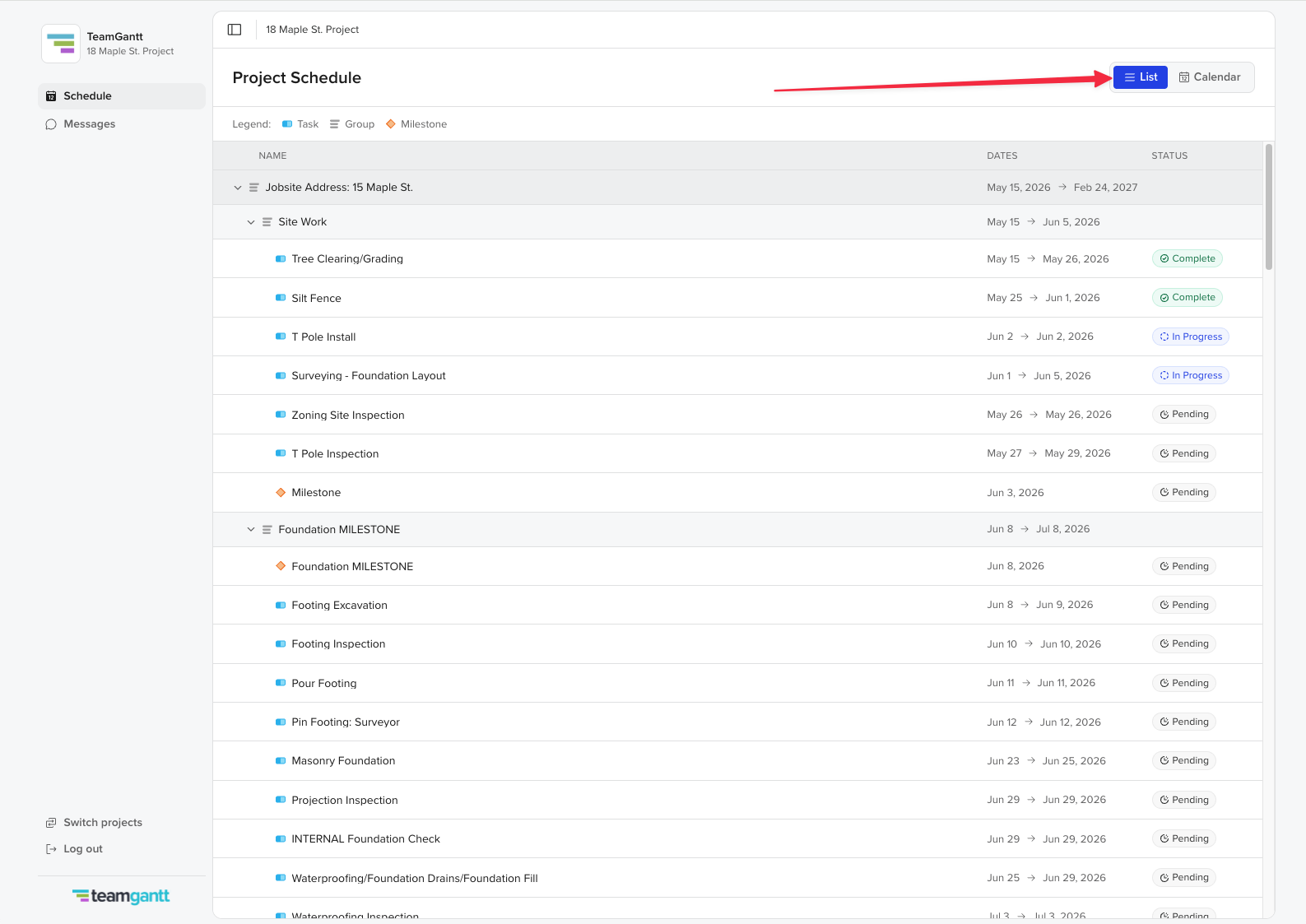
You can view your project schedule in two formats:
- List view shows a structured outline of upcoming work
- Calendar view shows when project steps are scheduled to happen
Use the toggle at the top of the portal to change between views.
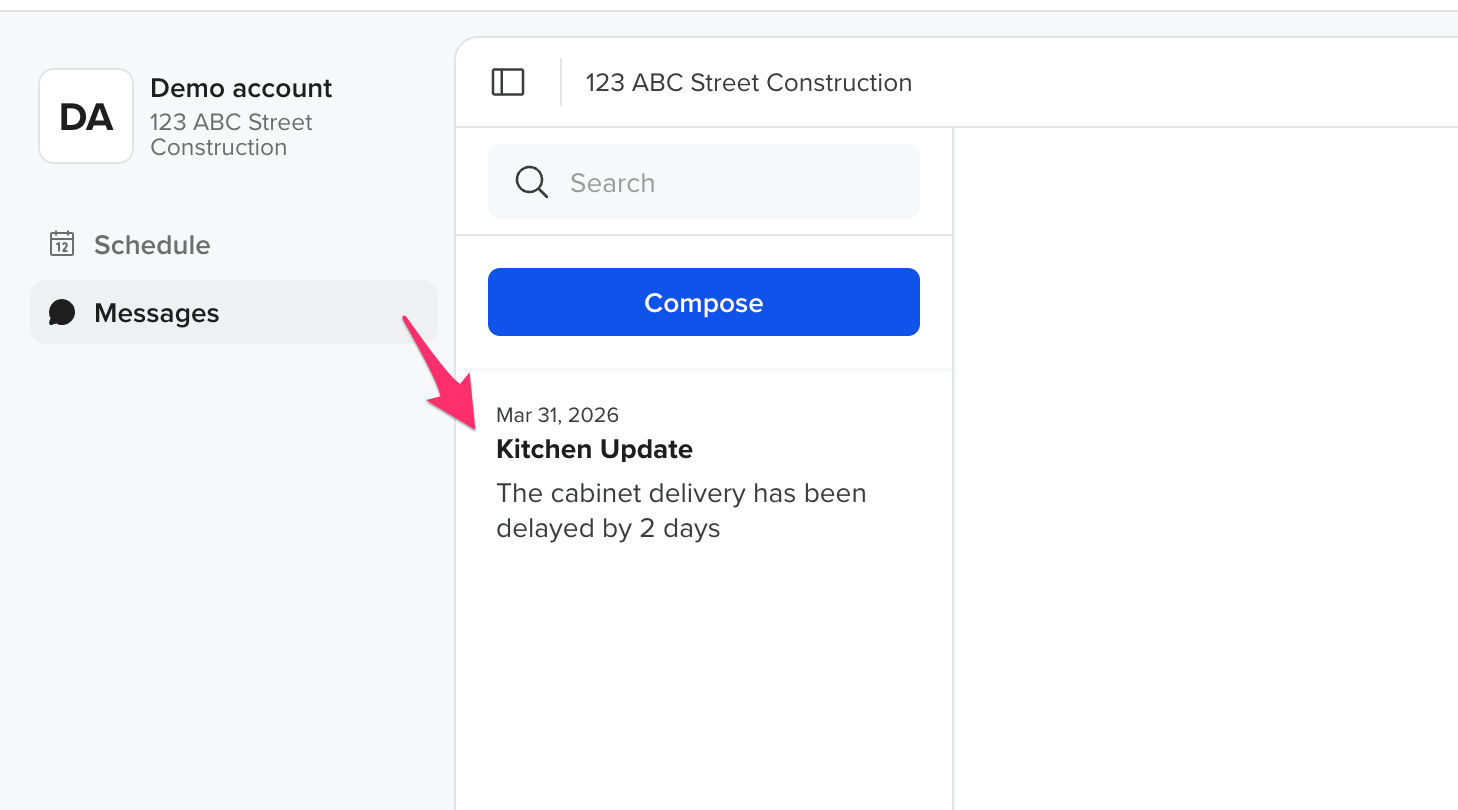
How to read messages sent from your builder
Your contact may share updates that include comments and photos via messages.
To view them:
- Select Messages in the left panel.
- Click on the desired message.
How to send messages to your builder?
The Client Portal includes a messaging inbox so you can stay connected in one place.
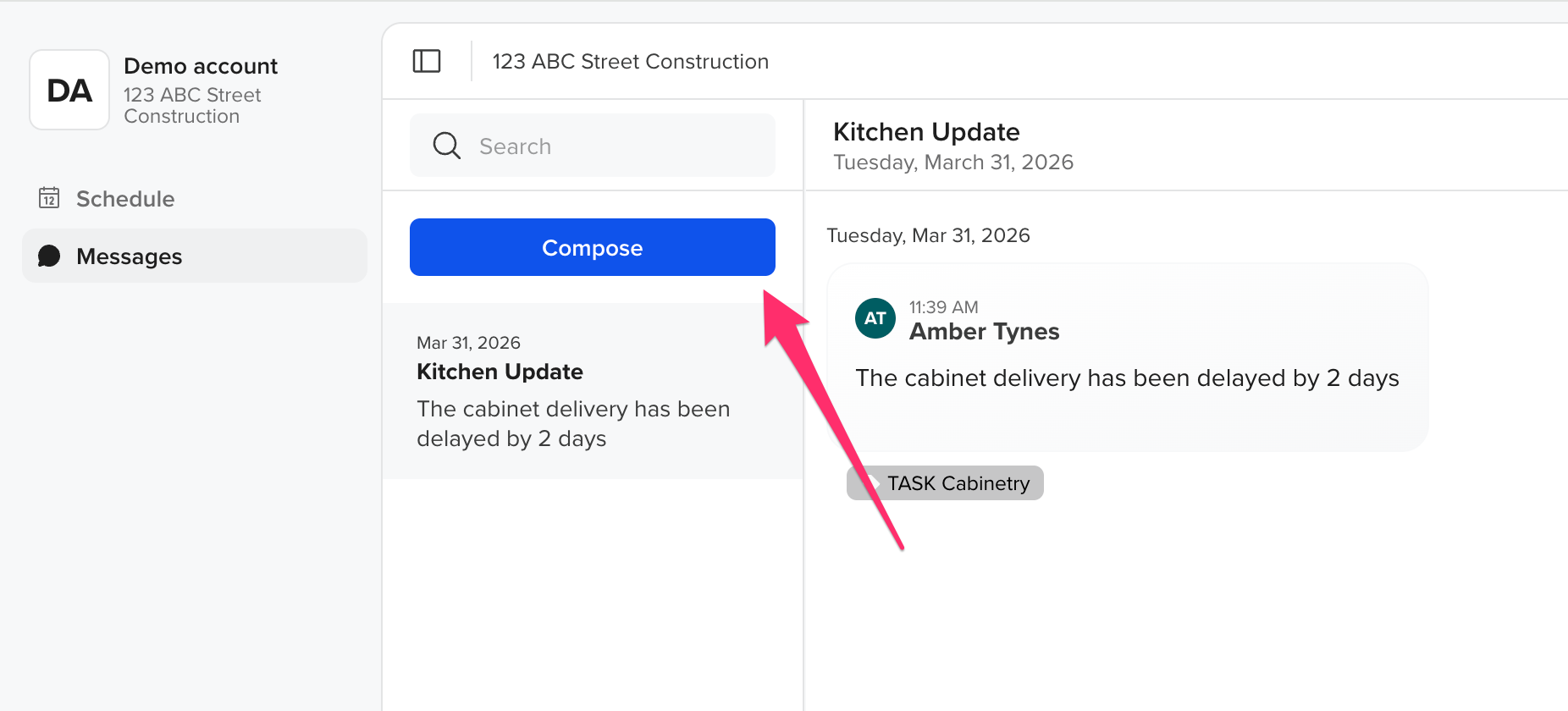
To send a new message:
- Open the Messaging Inbox
- Click Compose
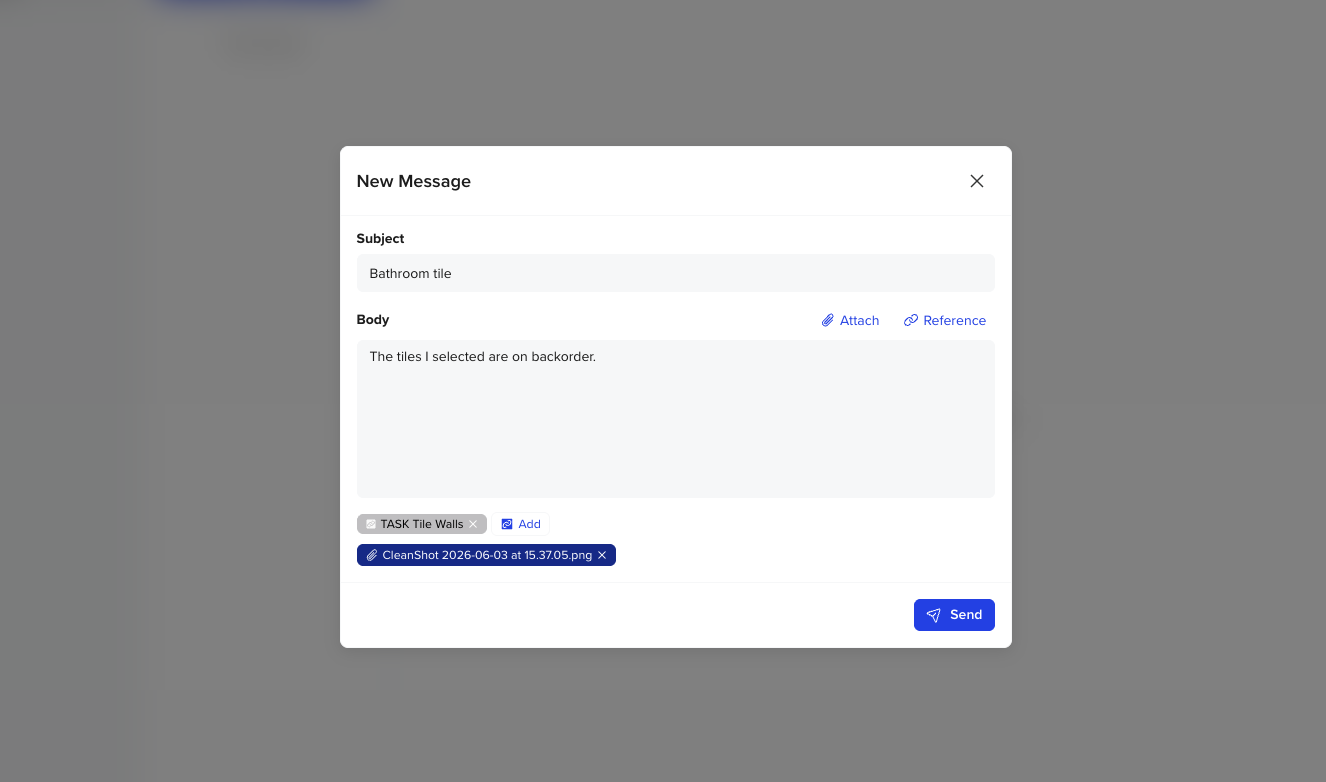
- Enter a Subject and Message. Optionally, you can add an attachment or reference specific work.
- Click Send
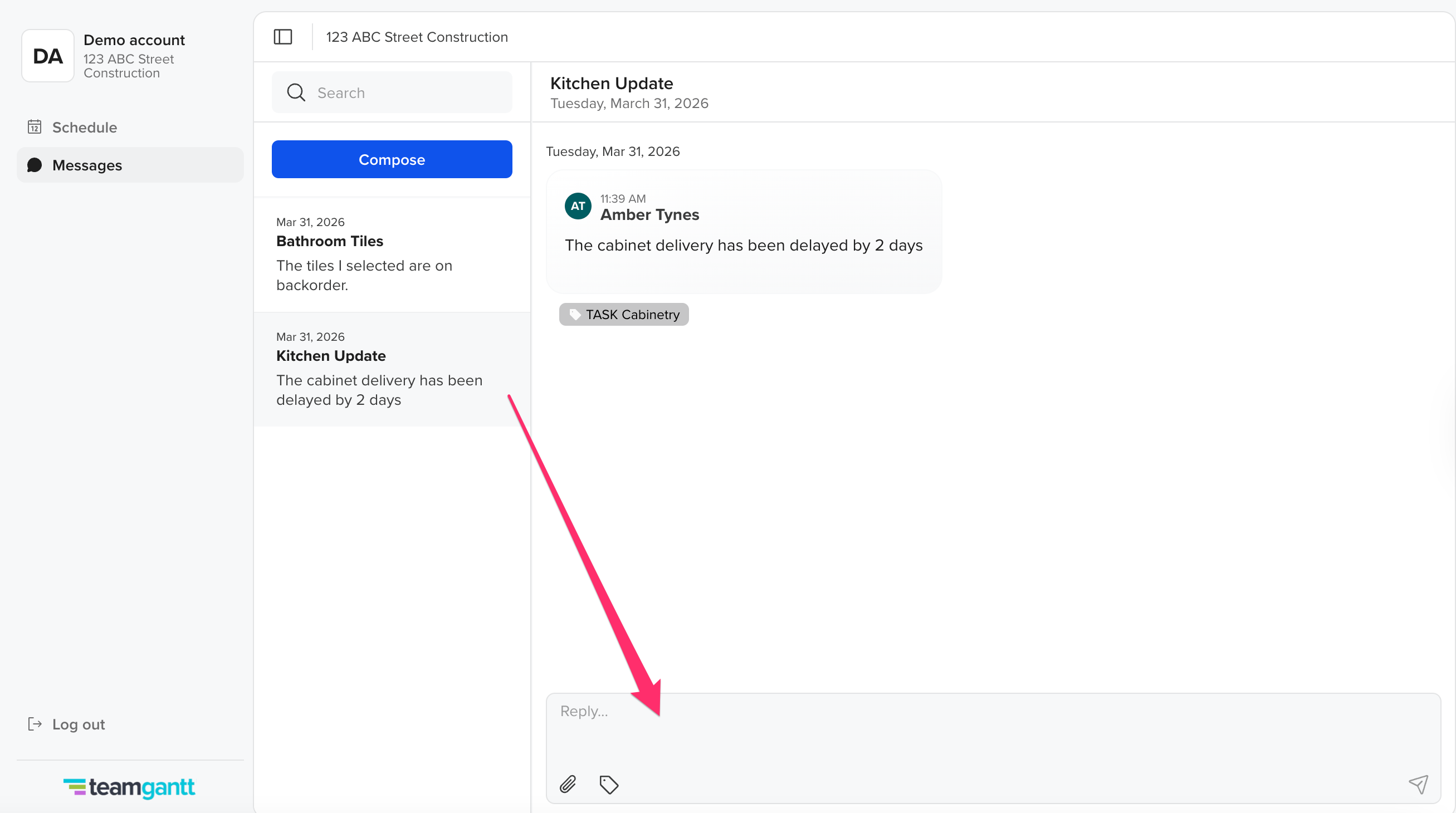
 To reply to a message:
- Open the message
- Then, enter your reply in the text box. You can add attachments and reference specific project work here too.
Your builder will be notified when you send a message.
What if I have a portal for multiple projects?
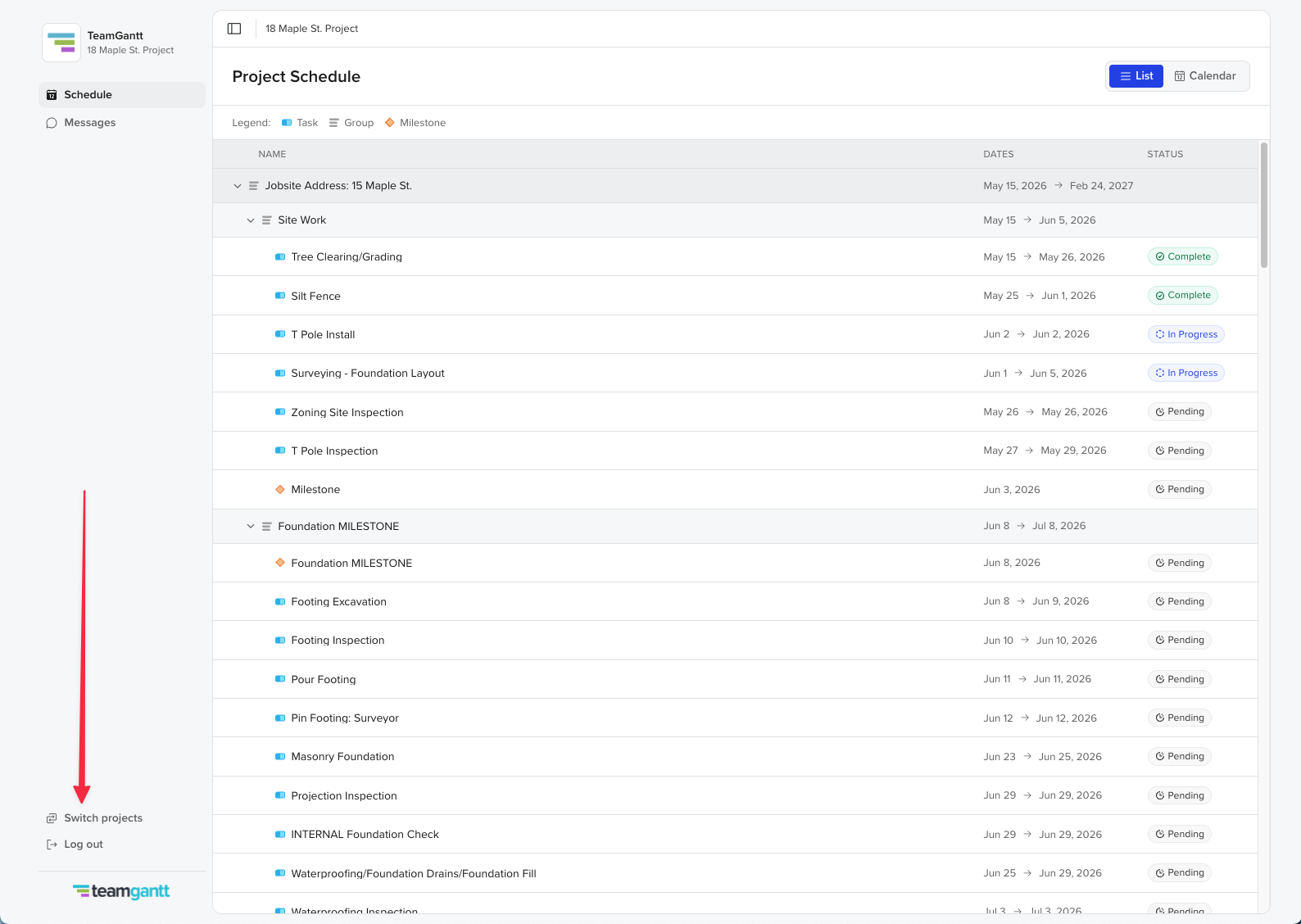
Your builder may invite you to view multiple projects. To switch between projects, simply click Switch projects in the bottom left panel.
Tips for using your Client Portal
To get the most out of your portal:
- Check the portal regularly for updates
- Review milestone dates to stay informed about progress
- Look for photos attached to updates
- Use the messaging inbox instead of email when possible, so communication stays in one place
Your Client Portal helps you stay informed about what’s happening now and what’s coming next in your project!