Single sign-on (SSO) gives Enterprise customers a secure, company-controlled way to access TeamGantt through their organization’s identity provider. Once SSO is set up for your account, your team will use a unique TeamGantt login URL that’s specific to your company.
What is SSO?
SSO lets your organization manage TeamGantt access through a SAML-based identity provider, such as Microsoft Entra ID, Okta, Auth0, or another provider that supports SAML authentication.
This is especially helpful for companies that require centralized security controls before purchasing or rolling out TeamGantt across their team.
|
Note: SSO is available for Enterprise accounts and requires help from TeamGantt to set up. To get started, contact Sales. |
How do I log in with SSO?
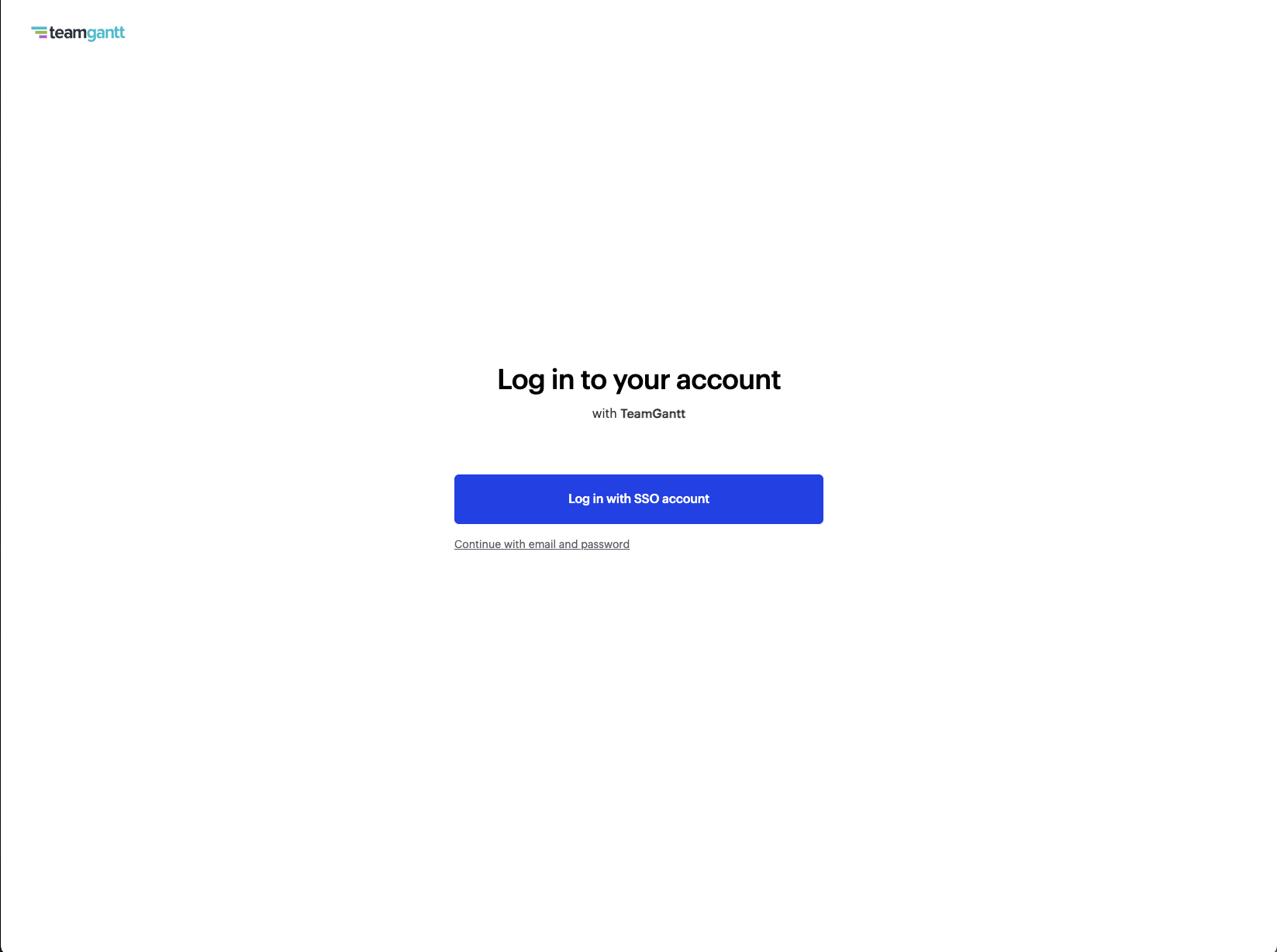
1. Go to your company’s TeamGantt SSO Login URL.
2. Click "Log in with SSO account."
3. Complete the sign-in steps through your company’s identity provider.
4. Once authentication is complete, you’ll be taken into your TeamGantt account.
When you log out of TeamGantt, you’ll be sent back to your company’s SSO login page instead of the general TeamGantt login page.
|
|
|
|
Where can I find my company’s SSO Login URL?
Your TeamGantt SSO Login URL is unique to your organization. TeamGantt will send this URL directly to your account admin after SSO has been set up.
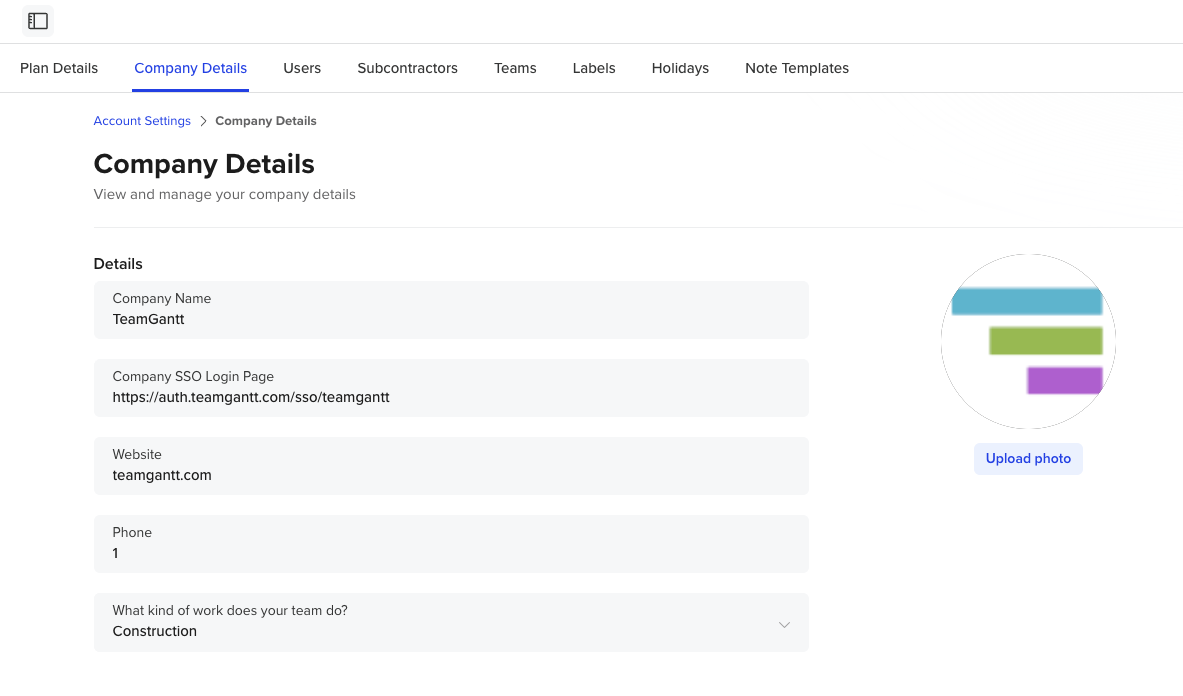
Admins can also view and copy the Login URL from TeamGantt:
1. Click your profile icon in the upper right corner of TeamGantt.
2. Go to Account Settings > Company Details.
3. Find the SSO Login URL and copy it to share with your team.
How do I add people to an SSO-enabled account?
For accounts using SSO, people must be added through your company’s SSO provider. Invite options are removed from TeamGantt so your organization can control who has access from one central place.
If someone can’t access TeamGantt, first confirm they’ve been added to the correct TeamGantt application or group in your identity provider. If they still can’t log in, contact your TeamGantt admin or reach out to TeamGantt support for help.
| Important: Users should not be invited manually from inside TeamGantt on SSO-enabled accounts. Manage access in your SSO provider instead. |
Which SSO providers does TeamGantt support?
TeamGantt supports SAML-based SSO providers, such as Microsoft Entra ID, Okta, and Auth0.
Because each provider and company configuration can be different, setting up SSO may require some coordination between your team and TeamGantt.
How do I get SSO for my TeamGantt account?
SSO is available for Enterprise accounts. To learn more or request SSO for your organization, please contact Sales.
FAQs
Can I use the normal TeamGantt login page if my company uses SSO?
Use your company’s unique SSO Login URL to access TeamGantt. If you log out, TeamGantt will return you to your organization’s SSO login page.
Can admins still invite users from TeamGantt?
No. On SSO-enabled accounts, people should be added and managed through your organization’s SSO provider.
Is SSO available on every TeamGantt plan?
No. SSO is available for Enterprise accounts.
What type of SSO does TeamGantt support?
TeamGantt supports SAML-based SSO providers.