The Procurement tracker helps construction teams manage materials across active projects from one global board. Use it to see what needs to be ordered soon, what has already been ordered, what is delayed, and what has been delivered.
| Note: Procurement works with materials in your projects. Materials can be pulled into the board based on the projects you select and how far ahead you want TeamGantt to look for upcoming order dates. |
What is the Procurement tracker?
Procurement is a global view that brings materials from selected projects into one status-based workflow. Instead of opening each project to check material needs, you can review and update materials from Procurement in the sidebar.
The tracker is organized into 4 material status columns:
- Not ordered
- Ordered
- Delayed
- Delivered
Each material appears as a card. Moving a card to a new column updates the material status and keeps that status connected to the material in your project.
How does the Procurement tracker work?
During setup, an account admin chooses which active projects should be tracked. They also choose how far ahead TeamGantt should look for materials that need to be ordered.
Once the tracker is set up, materials can appear in Procurement in 2 ways:
- Automatically, when materials from selected projects fall within the timeframe you chose.
- Manually, when you add a new material directly from the Procurement tracker.
Procurement helps teams connect material planning back to the project schedule, so upcoming order needs and delays are easier to spot before they impact the job.
How do I set up the Procurement tracker?
To set up Procurement:
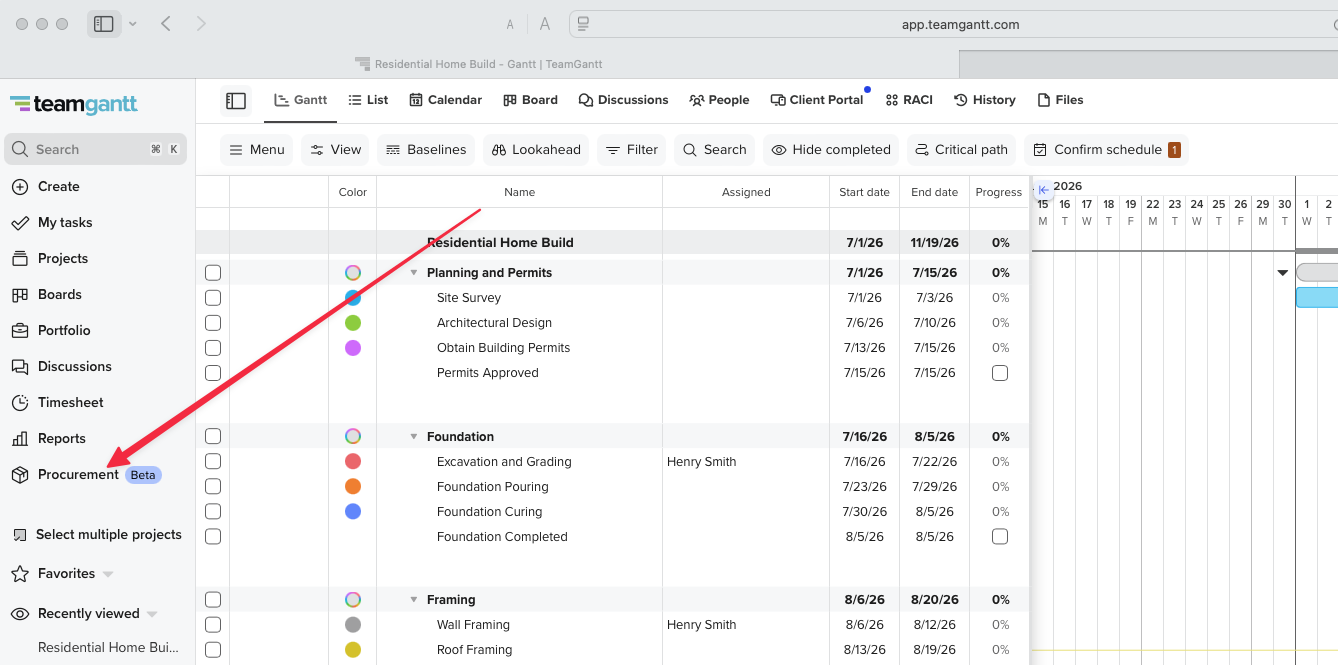
1) Select Procurement from the left sidebar.
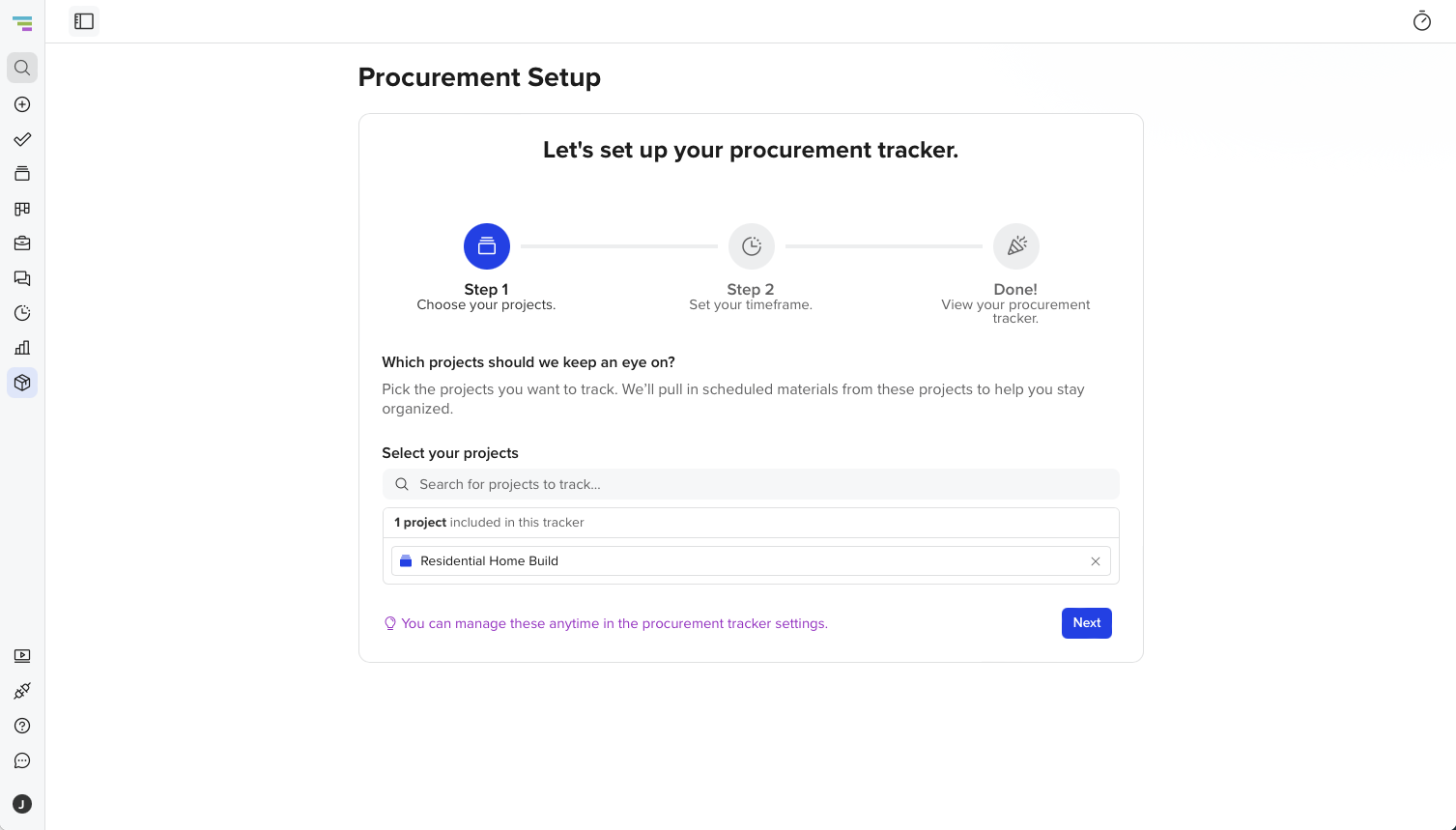
2) Choose the active projects you want to include in the tracker.
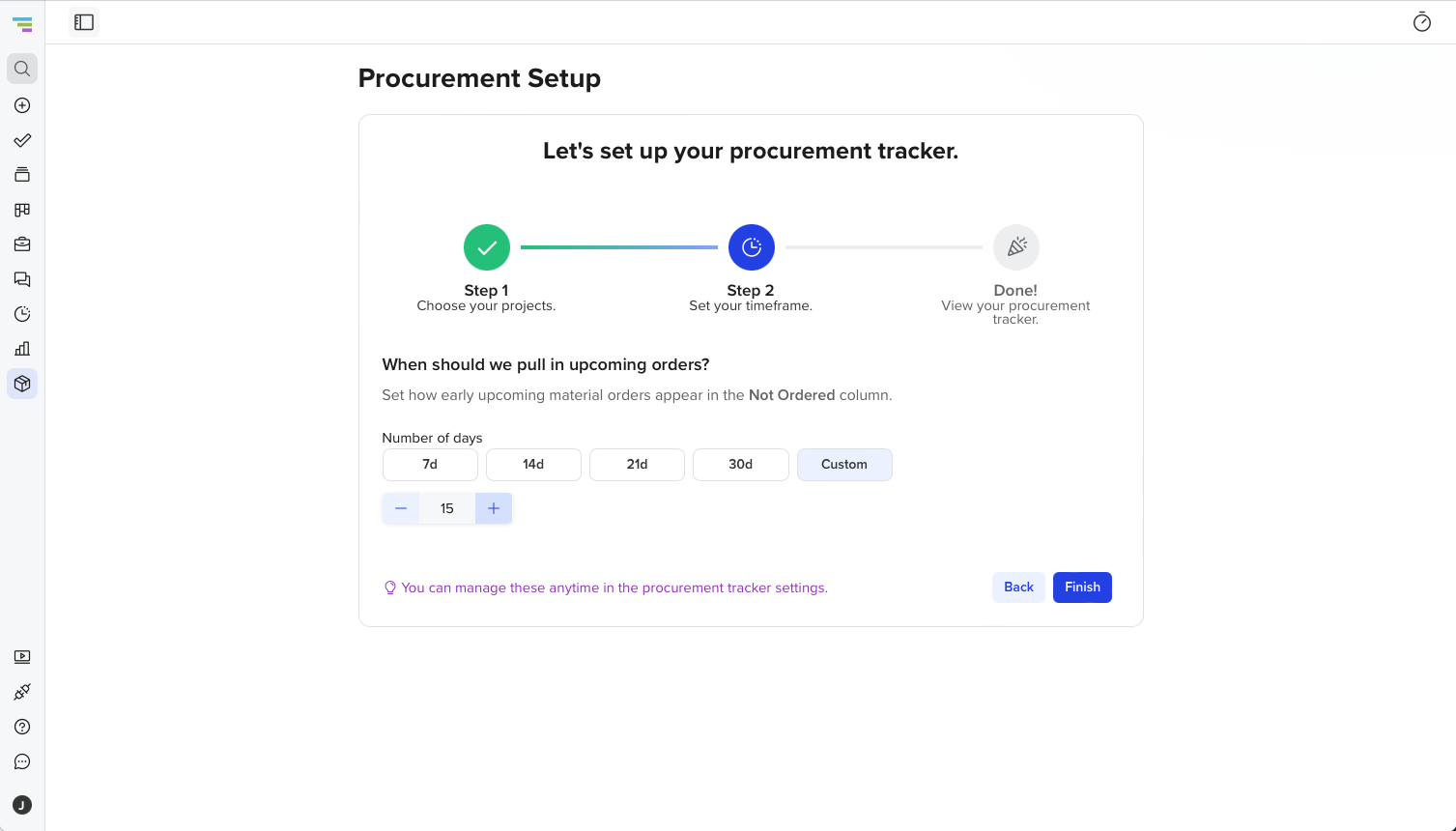
 3) Choose how far ahead TeamGantt should look for materials based on their order-by date. For instance, if you'd like to see all of the things that you need to order a week from now, you could select "7d".
You can also input a custom range, if desired.
4) Save your settings to enable tracking.
| Tip: The timeframe controls when materials appear in the Not ordered column. For example, if you choose 14 days, materials with an upcoming order-by date within the next 14 days can be pulled into the tracker. |
| How do I add or update materials from the Procurement tracker? |
Update a material status
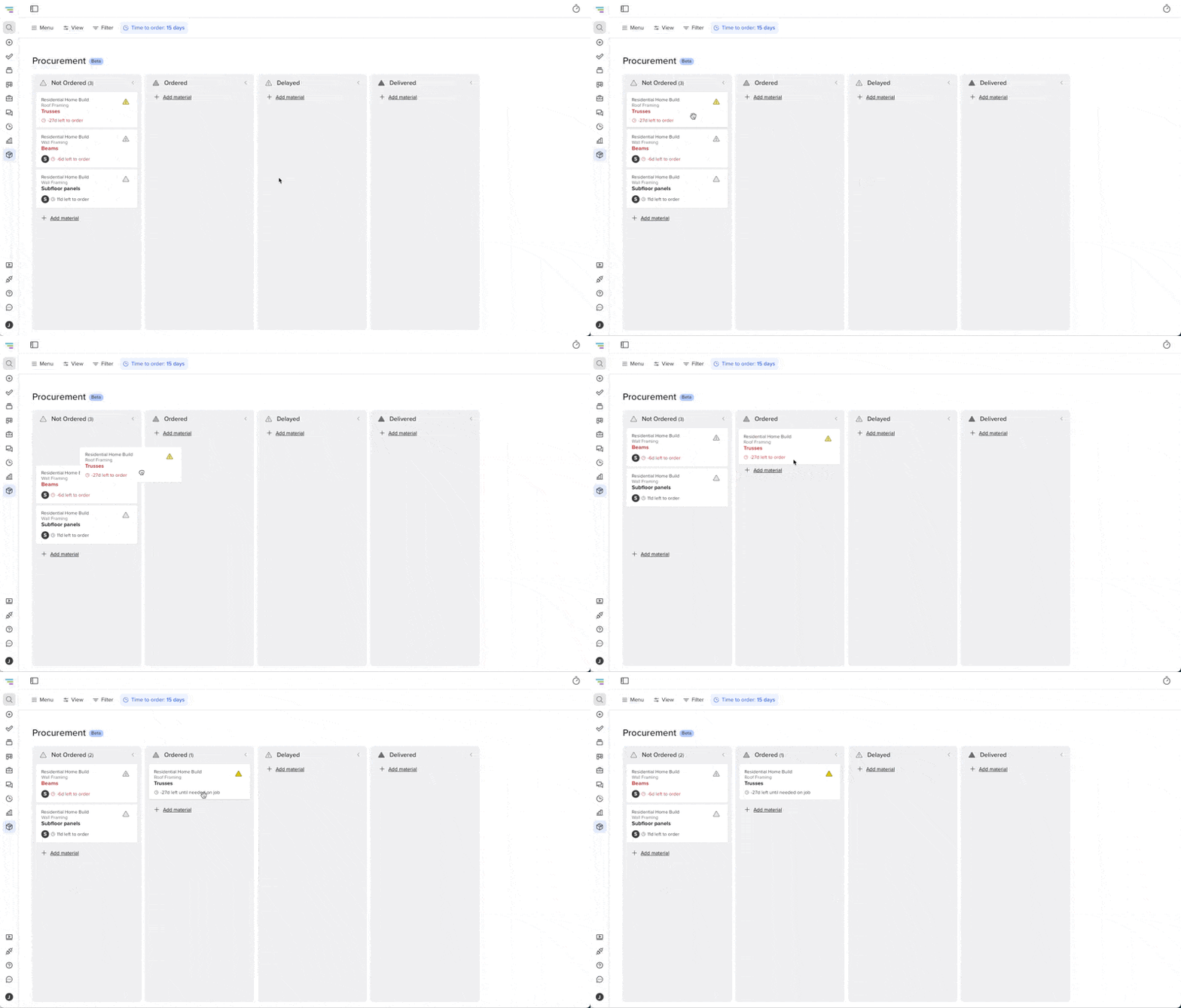
To update a material status, drag the material card to a different column on the Procurement tracker. The material status will update on the tracker and sync back to the related material in the project.
For example, moving a material from Not ordered to Ordered marks that material as ordered. Moving it to Delayed helps your team quickly see that the material needs attention.
Add a new material from Procurement
You can also add a new material directly from the Procurement tracker. This is helpful when you need to quickly add something that should be tracked through procurement without opening the project first.
- Open the Procurement tracker.
- Select the option to add material from the link in any column.
- Choose the related project, group, and task details as needed.
- Add the material details, including the order-by date and purchaser if applicable.
- Save the material.
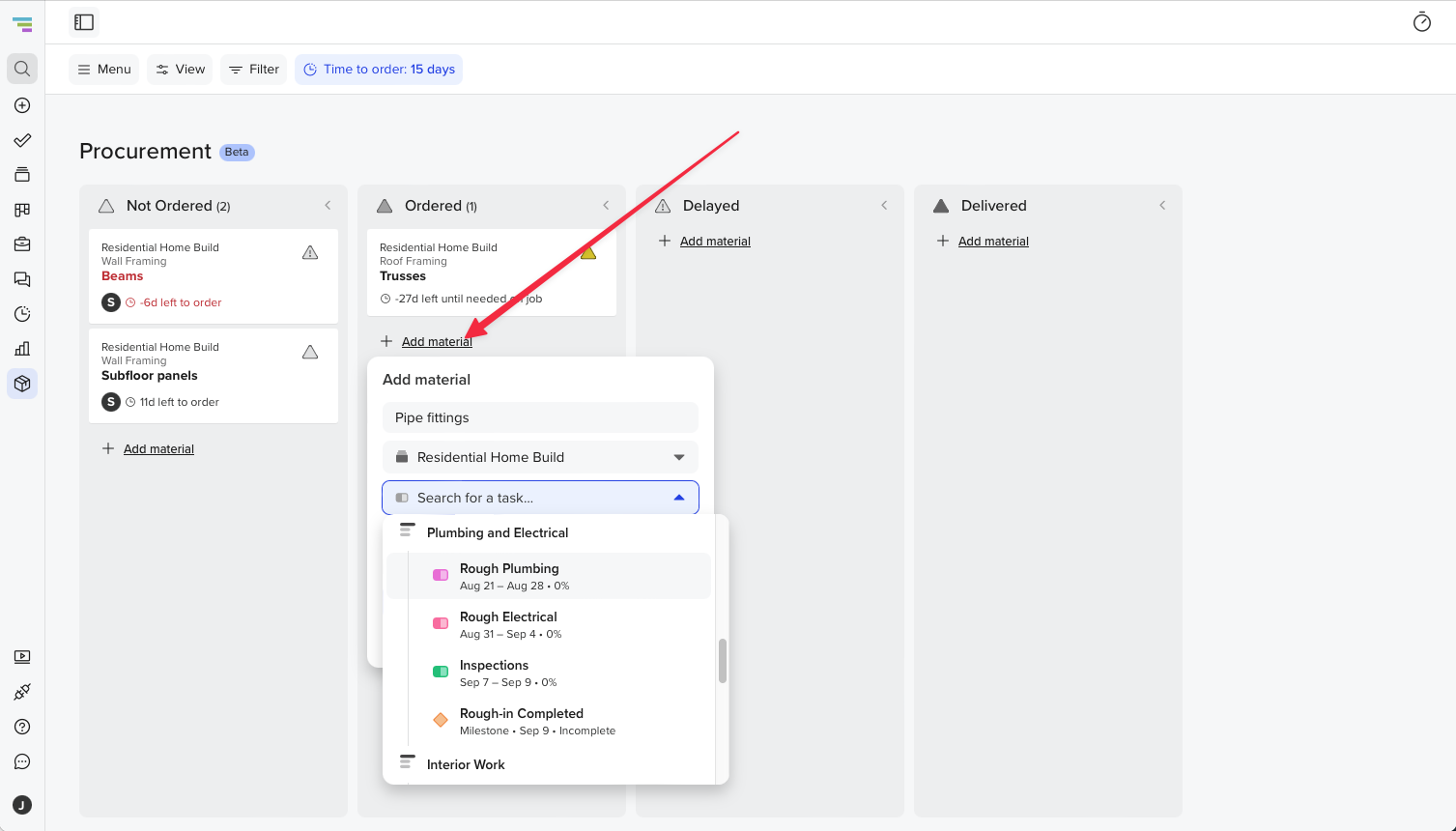
| Note: Exact fields may vary based on your account settings and the project where the material is being added. |
How do I filter or customize the Procurement tracker?
Procurement includes controls to help you focus on the materials that matter most.
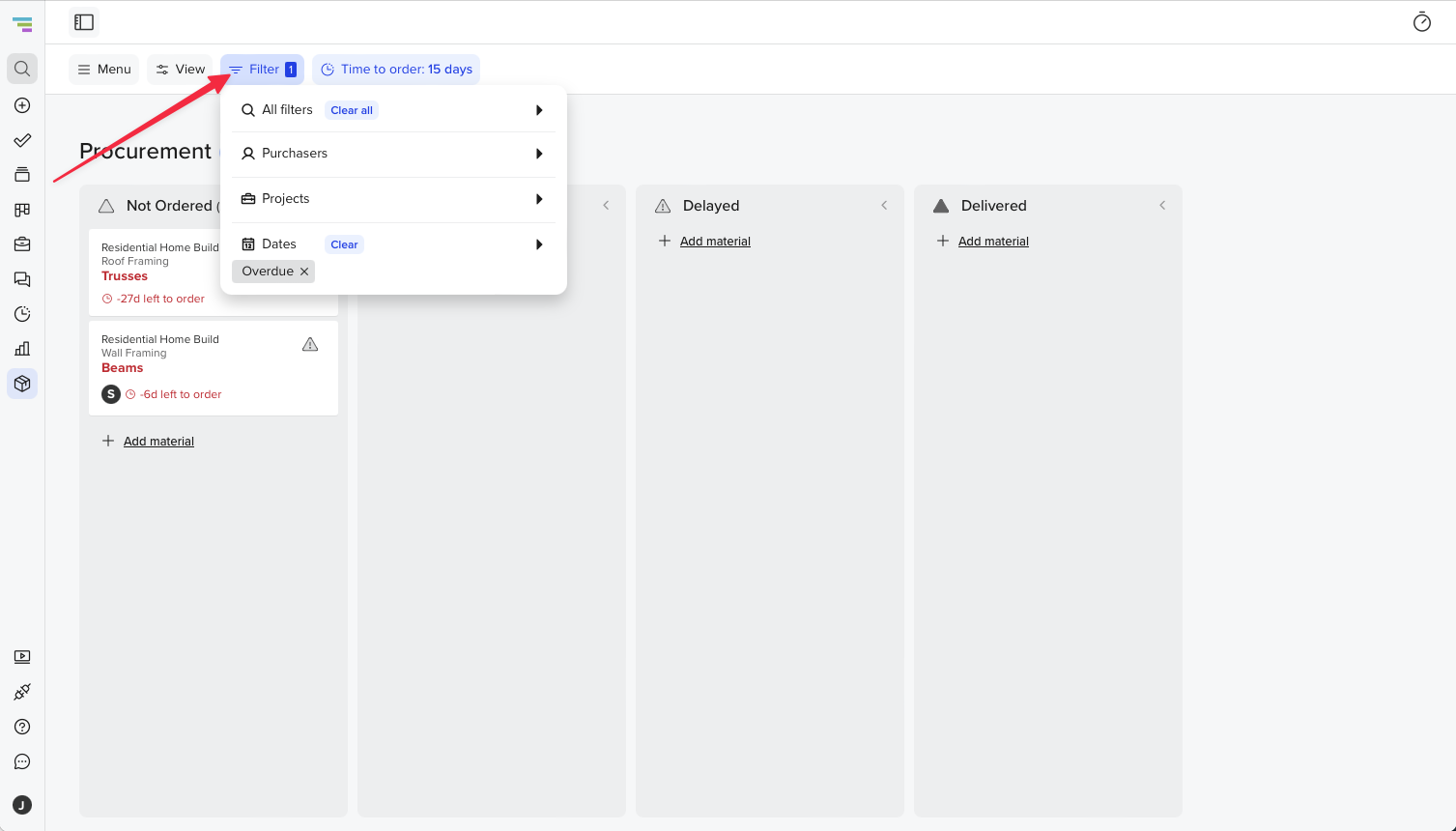
Filter Procurement
You can filter Procurement by:
- Project
- Purchaser
- Dates
Filters are helpful when you want to focus on a single project, a specific person responsible for ordering, or materials that fall within a certain date range.
Show or hide card details
From the View menu, you can choose which details appear on material cards, such as project name, group name, and task name. This helps you keep the view as simple or detailed as your workflow requires.
How do I review materials that are due or overdue to be ordered?
If the Procurement tracker includes materials that are due today or overdue to be ordered, TeamGantt will show a banner at the top of the page.This gives your team a quick way to spot materials that need attention before they impact the project schedule.
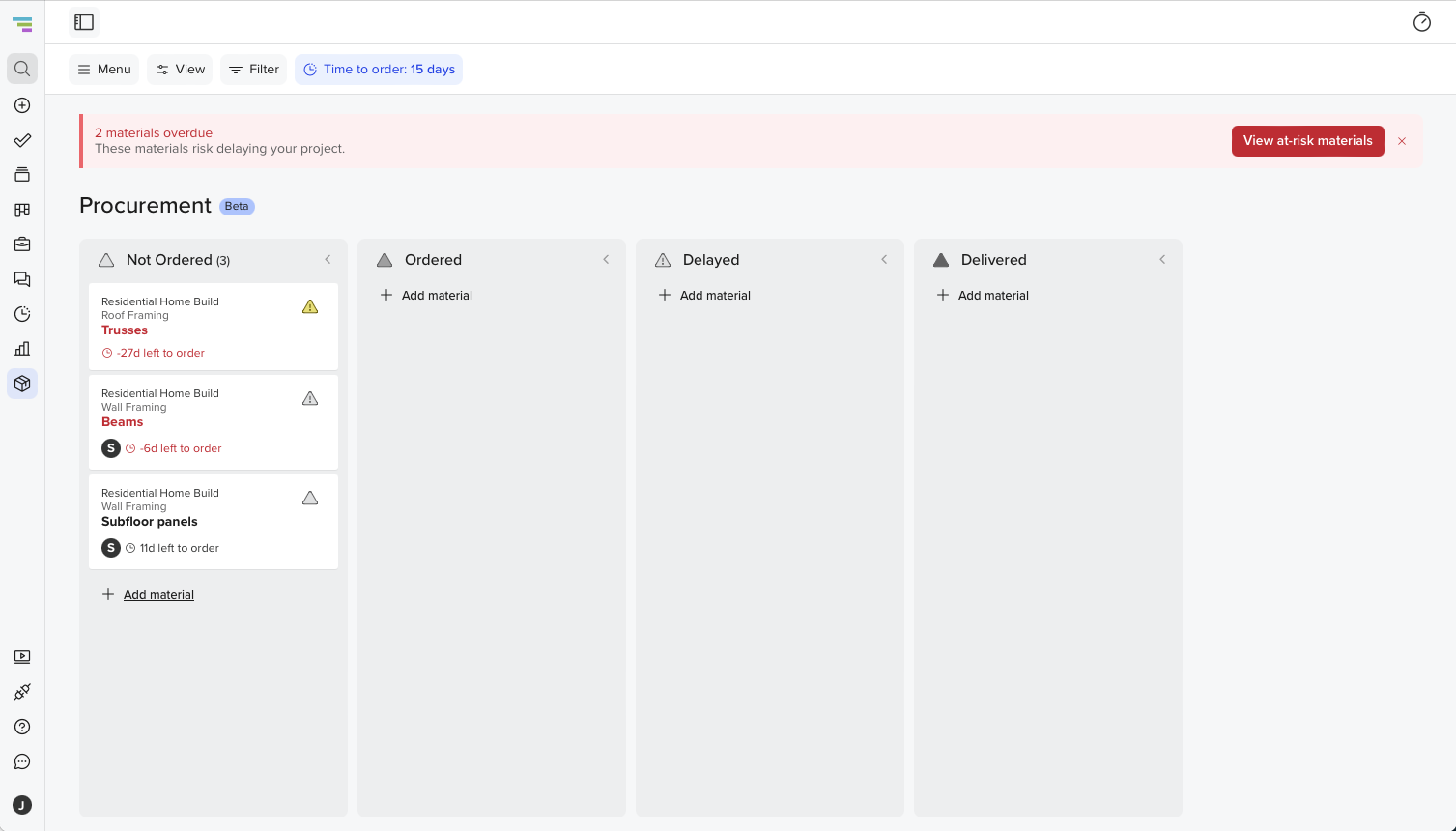
To review due or overdue materials:
- Open the Procurement tracker.
- Look for the banner at the top of the page.
- Select the button in the banner to filter the tracker to materials that are due today or overdue to be ordered.
- Review the filtered materials and update their status as needed.
Tip: Once you are done reviewing due or overdue items, clear the filter to return to the full view.
How do I update Procurement settings?
You can update Procurement settings if you need to change which projects are included or how far ahead materials should be pulled into the tracker. This will change the setting for all users of the Procurement tracker.
To change the projects that are pulled in:
- Open the Procurement tracker.
- Select Settings.
- Update the included projects.
- Save your changes.
To change the timeframe for when you want a material to appear on the board:
- Open the Procurement tracker.
- Select Time to order.
- Update the # of days.
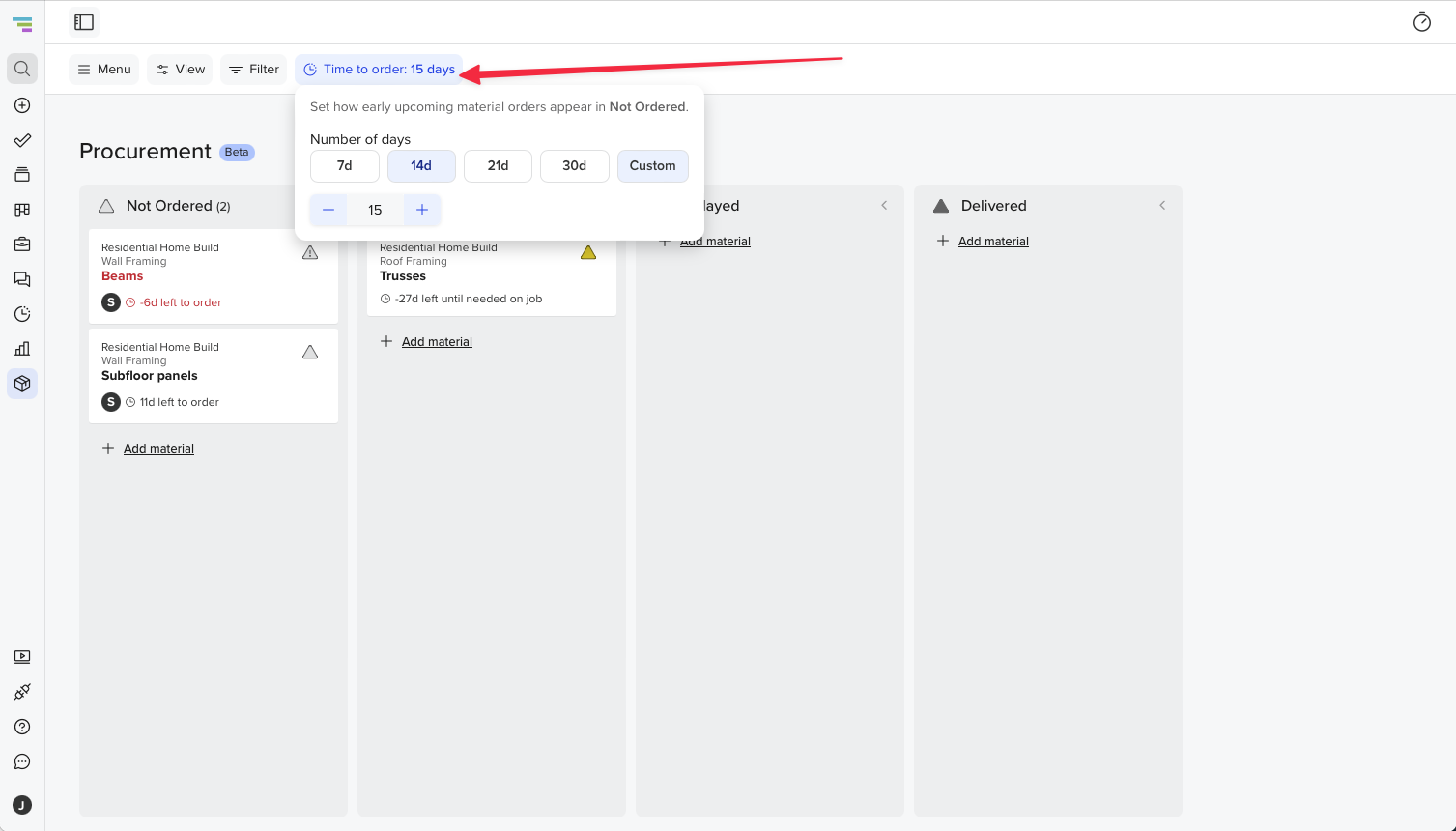
| Tip: Changing these settings can affect which materials appear on the tracker. If a material is not showing, check that its project is included and that its order-by date falls within the selected timeframe. |
How do I manage people and permissions?
Procurement includes a People page where admins can invite users or teams to the tracker. This helps the right people collaborate on ordering, delays, and delivery updates across projects. Currently, only Managers can be invited to the Procurement tracker.
Use the Invite people link to invite people to the tracker.
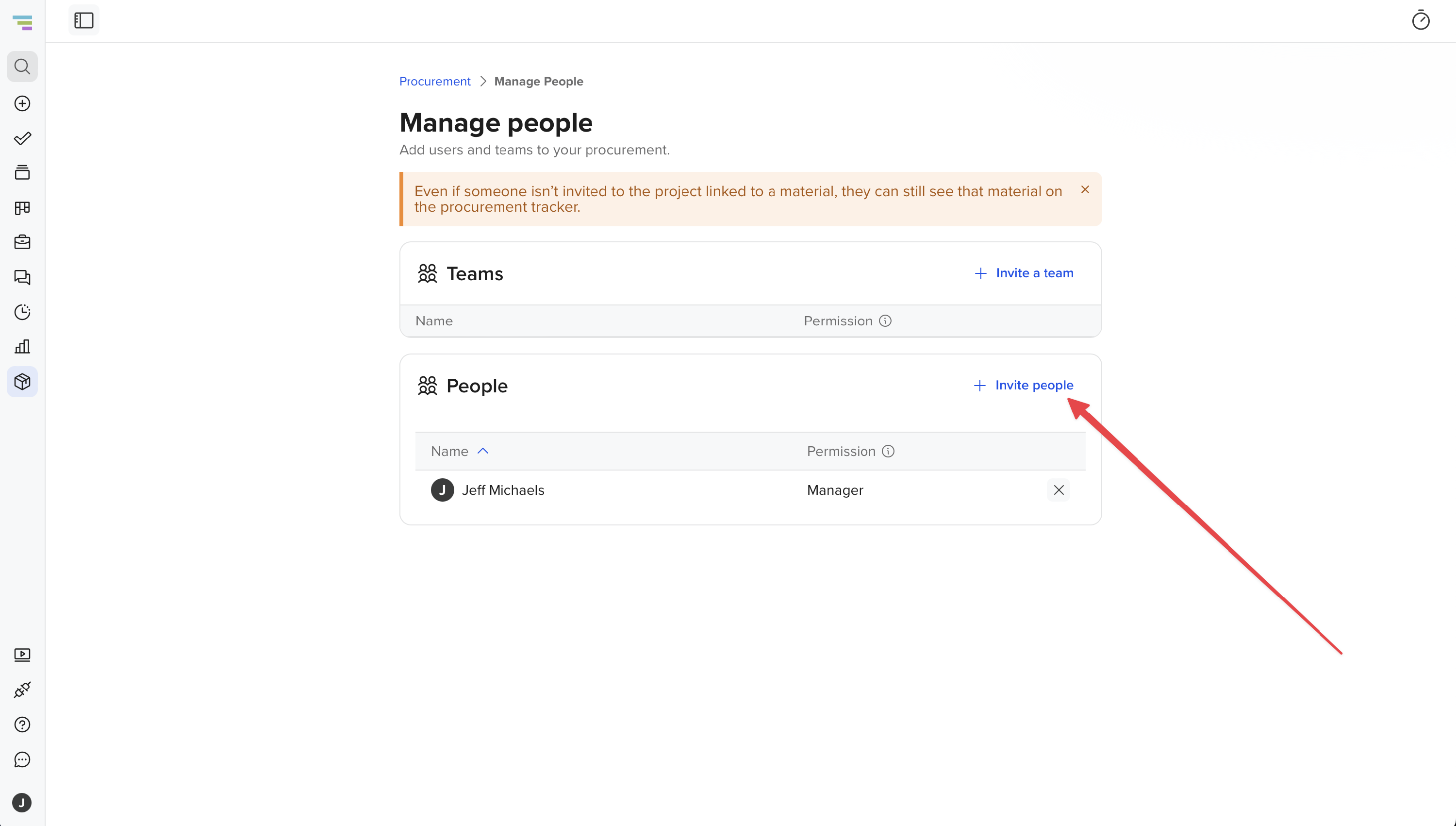
Project access still matters. If someone does not have access to every project included in Procurement, some related project details may be limited based on their permissions. However, if applicable, there will be quick way to see which projects a person doesn't have access to and invite them immediately--all without leaving this page.
| Note: Admins can control who has access to the Procurement workflow while still keeping project-level permissions in place. |
FAQs
Who can use the Procurement tracker?
Procurement is designed for construction teams and is available on select construction plans. If you do not see Procurement in your sidebar, your account may not have access to this feature. Currently, this is limited to users with Manager-level permission.
Which projects can be included?
Procurement can include selected active projects. During setup, an admin chooses which active projects should be pulled into the tracker.
Why is a material not showing on the tracker?
Check that the related project is active and included in Procurement settings. You should also confirm the material has an order-by date that falls within the selected timeframe and that no filters are hiding it.
What happens when I move a material card?
Moving a card updates the material status. That status syncs back to the material in the related project.
Does Procurement change my task dates?
Changing a material status updates the material status. It does not automatically change task dates.
Can I use Procurement for delayed materials?
Yes. Move a material to the Delayed column when it needs attention. This gives your team a clear visual way to track materials that may affect the schedule.
Can I add materials directly from the tracker?
Yes. You can add new materials directly from Procurement and connect them to the appropriate project, group, and task details.
Why am I seeing a banner at the top of the Procurement tracker?
You will see this banner when materials are due today or overdue to be ordered. Use the button in the banner to quickly filter your view to those items.
Related articles