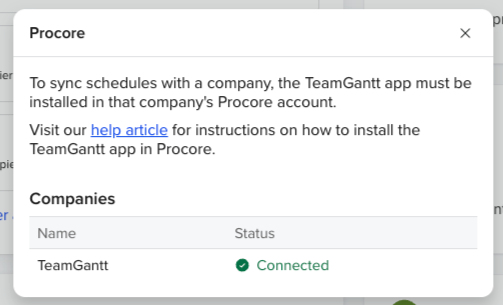
Step 1: Install the app in Procore
Start by logging into your Procore account and going to your dashboard.
Note: You will need permission to install apps in your company before performing this step.
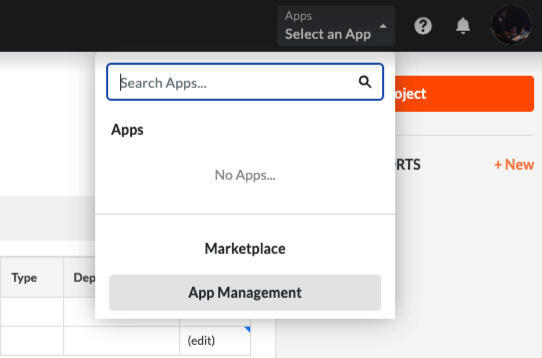
- In the Procore dashboard, click the "Apps" dropdown.
- In the dropdown, click "App Management".
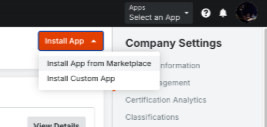
- Click the "Install App" dropdown.
- Click "Install App from Marketplace".
- Search for the TeamGantt App in the Marketplace and install it.
Step 2: Setup the integration in TeamGantt
Login to your TeamGantt account in order to setup the Procore integration.
Note: Your company must have the Procore feature available on their TeamGantt subscription to setup the integration.
- In the navigation sidebar, select "Integrations".
- Click "Configure" in the Procore card on the Integrations page.
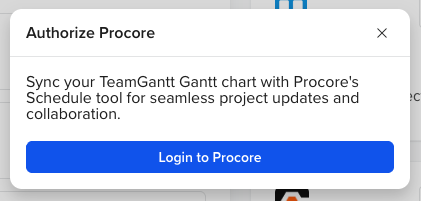
- Click "Login to Procore".
- After logging in, you should be sent back to the Integrations page in TeamGantt. Ensure that your Procore company is listed in the modal and shows "Connected".