Custom fields (available on select paid plans) make it easy to track additional task details that are specific to the way your team works.
Use custom fields to add details like internal notes, dates, numbers, yes/no indicators, or dropdown selections directly to tasks in your project. Once a custom field is enabled on a project, you can view and update that information from task details or as a column in your gantt chart.
What are custom fields?
Custom fields are task-level fields you create for your account. They help your team track information that is not included in TeamGantt’s standard task fields.
Custom field types include:
- Text
- Date
- Number
- Toggle
- Single Select
Create a custom field
Managers can create custom fields from inside a project.
Here’s how:
- Open your project.
- Go to Menu > Open project details.
- Select the Custom Fields tab.
- Click Create custom field.
- Enter a name for your field.
- Add a description, if needed.
- Choose a field type.
- Click Create custom field.
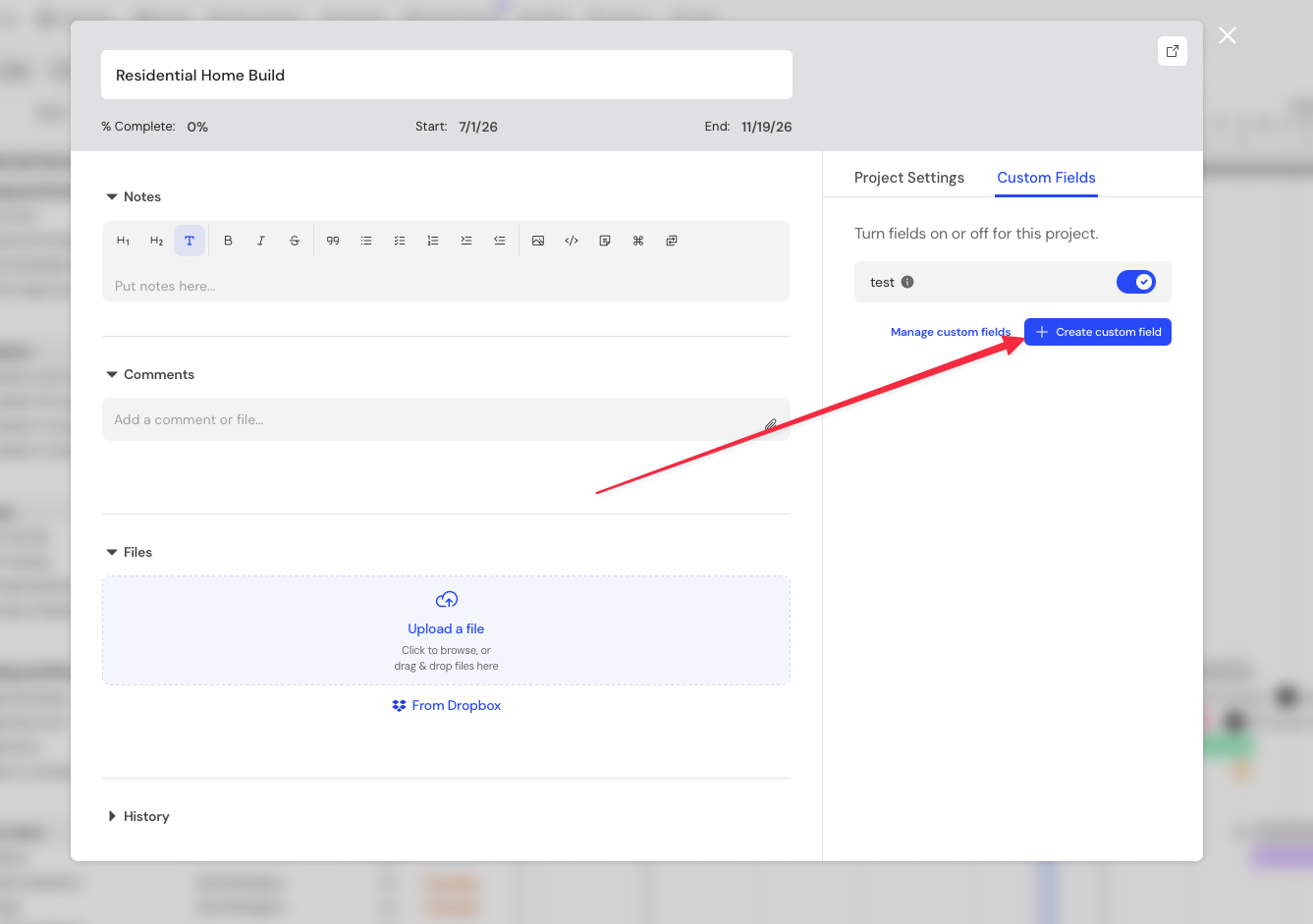
Custom field names must be unique. If a custom field with the same name already exists, you’ll see an error message.
Manage custom fields for a project
Custom fields are turned on for all projects by default. You can choose which custom fields appear in a specific project from the project details window.
Here’s how:
- Open your project.
- Go to Menu > Open project details.
- Select the Custom Fields tab.
- Use the toggles to turn fields on or off for that project.
When a custom field is turned off for a project, it will no longer appear in the column menu or task details for that project.
Any existing data in that field will be saved. If you turn the field back on later, the data will still be there.
Manage custom fields at the company level
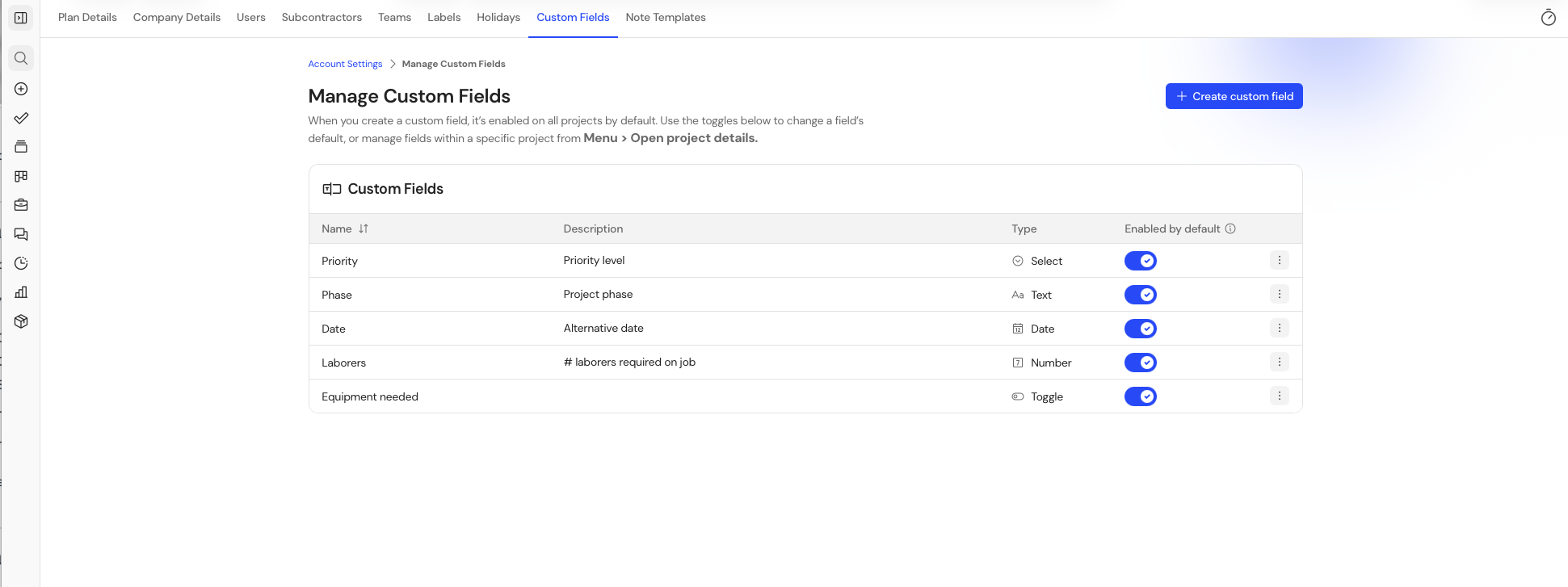
Account admins can manage all custom fields from account settings.
Here’s how:
- Go to Account Settings.
- Select Manage Custom Fields.
- From here, you can create, edit, or delete custom fields for your account.
Custom fields can be turned on for all projects by default by toggling " Enabled by default." To choose which custom fields appear in a specific project, open the project and go to Menu > Open project details.
Add custom field values to a task
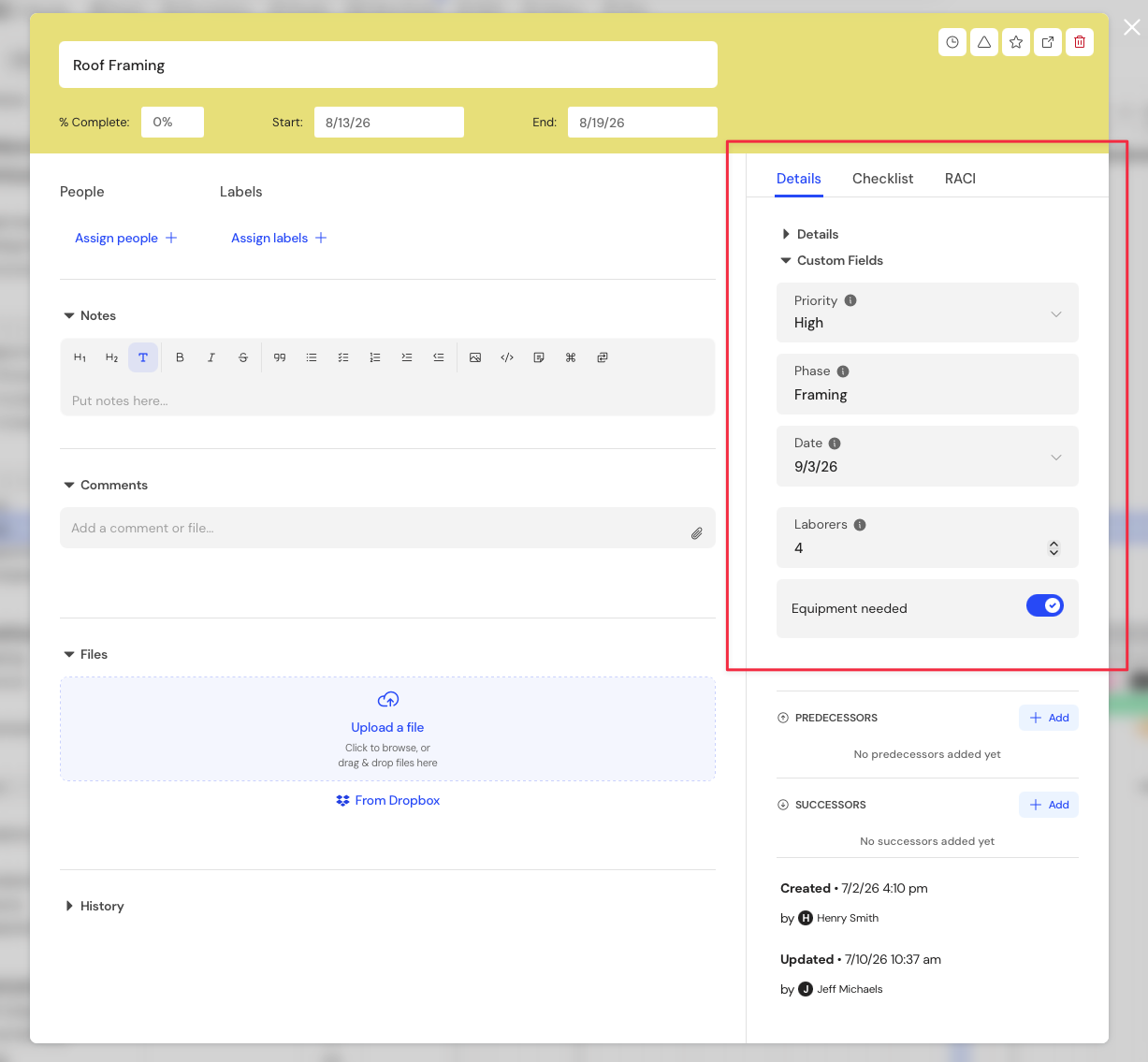
Once a custom field is enabled on a project, managers can add or edit custom field values on tasks.
Here’s how:
- Open the task.
- Go to the Details tab.
- Find the Custom Fields section.
- Add or update the custom field value.
- Your changes will save automatically.
The Custom Fields section only shows fields that are enabled for the project.
Show custom fields as columns
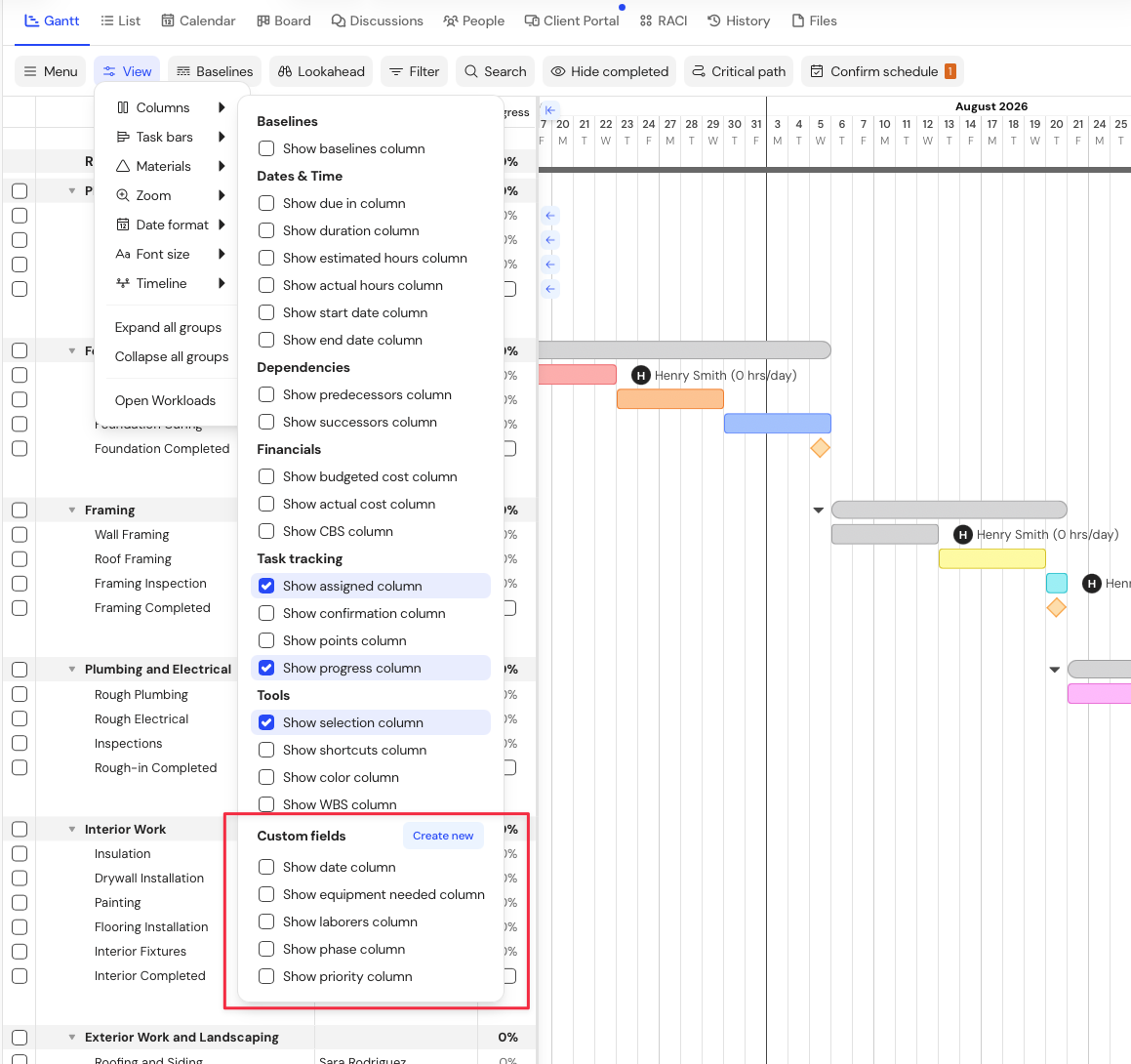
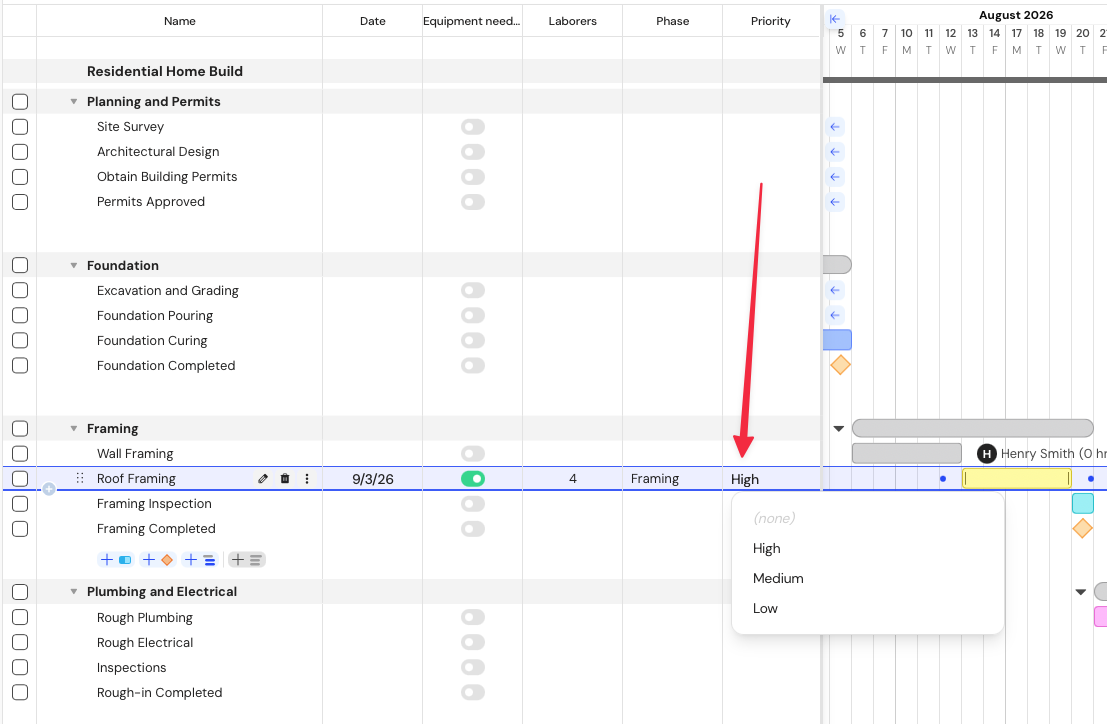
You can also show custom fields as columns in your gantt chart.
Here’s how:
- Open your project.
- Open View > Columns.
- Scroll to the Custom fields section.
- Select the fields you want to show as columns.
Custom field columns can be resized and reordered, just like other columns in your project.
Edit custom fields from the gantt chart
Managers can update custom field values directly from custom field columns in the gantt chart.
Field behavior depends on the field type:
- Text: Click the cell to enter or edit text.
- Date: Click the cell to choose or update a date.
- Number: Click the cell to enter or edit a number.
- Toggle: Use the toggle to turn the value on or off.
- Single Select: Click the cell to choose or update a selection.
Custom fields in multi-project gantt view
If you’re viewing multiple projects in gantt view, custom field columns can still be shown.
If a custom field is not enabled on one of the open projects, the cells for that project will appear empty.
Export & share custom field data (Coming soon)
Custom field column data will b included when exporting your project to CSV. If you export multiple projects, custom field data will be included for the projects where those fields are available.
Custom field column data will also included in share URLs, so people viewing the shared project can see the custom field information included in the shared view.
Permissions
Custom field access depends on your permission level.
Managers with account admin permission can:
- Create custom fields
- Manage which fields are enabled on a project
- Add and edit custom field values on tasks
- Create, edit, and delete fields from Account Settings > Manage Custom Fields
Managers can:
- Create custom fields
- Manage which fields are enabled on a project
- Add and edit custom field values on tasks
Managers who are not account admins cannot manage, edit, or delete fields from the company-level Manage Custom Fields page.
Collaborators can:
- View custom fields
Collaborators cannot create or manage custom fields, turn fields on or off for a project, or add and edit custom field values on tasks.
FAQ
What happens if I turn off a custom field for a project?
The field will be hidden from the column menu and task details for that project. Any existing data will be saved and will reappear if the field is turned back on later.
Can I create a custom field from inside a project?
Yes. Managers can create custom fields from the Custom Fields tab in project details.
Can I delete a custom field?
Account admins can delete custom fields from Account Settings > Manage Custom Fields.
Can collaborators edit custom field values?
No. Collaborators can view custom fields, but they cannot create, manage, or edit them.
Are custom fields included in CSV exports?
Yes. Custom field column data is included in CSV exports.
Can I filter by custom fields?
Filtering by custom fields is not available at this time.